Popular Keyword
MU Online

- Philippines Payment
- Malaysia Payment
- Singapore Payment
Philippines Payment Method
Step 1
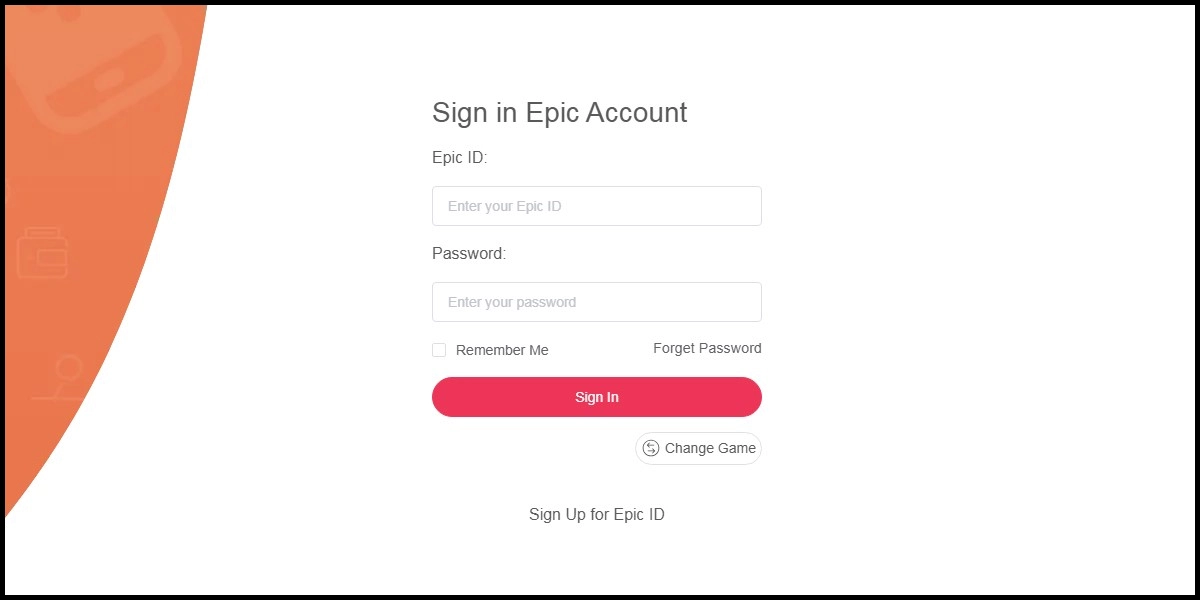
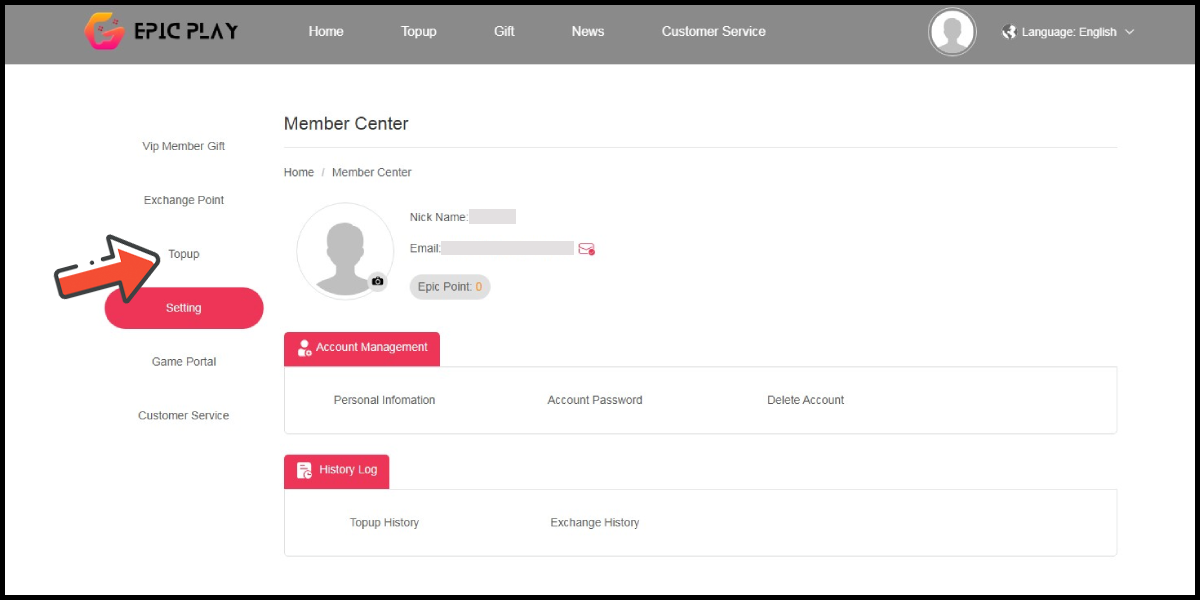
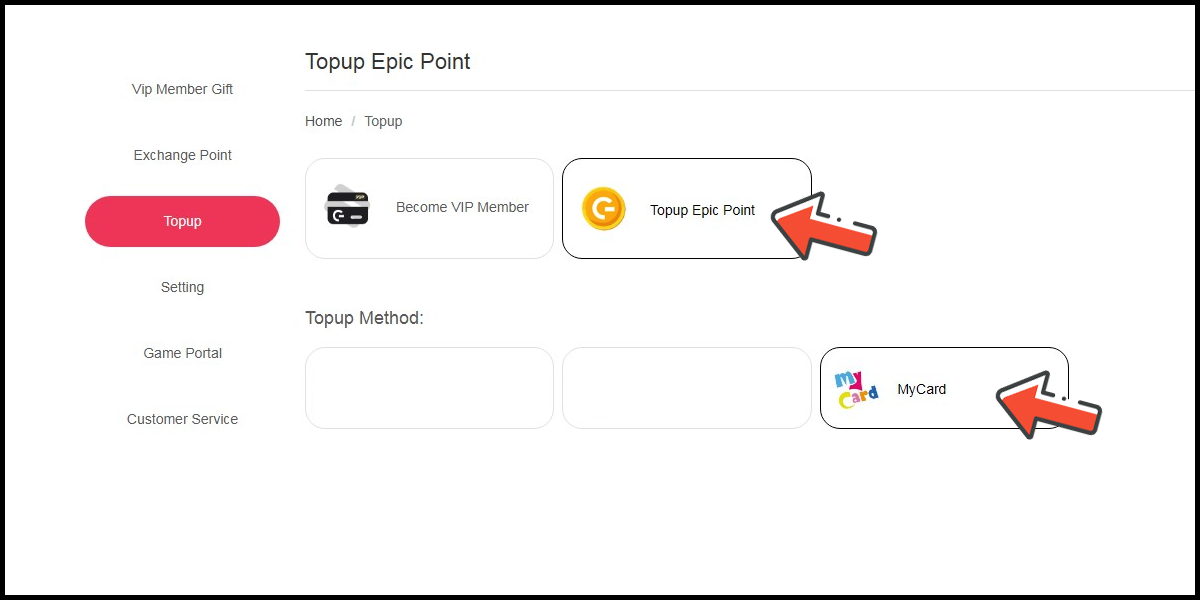
Click here to go to the top-up page, log in to your game account, and then click "Topup" on the left side of the profile page.
Step 2
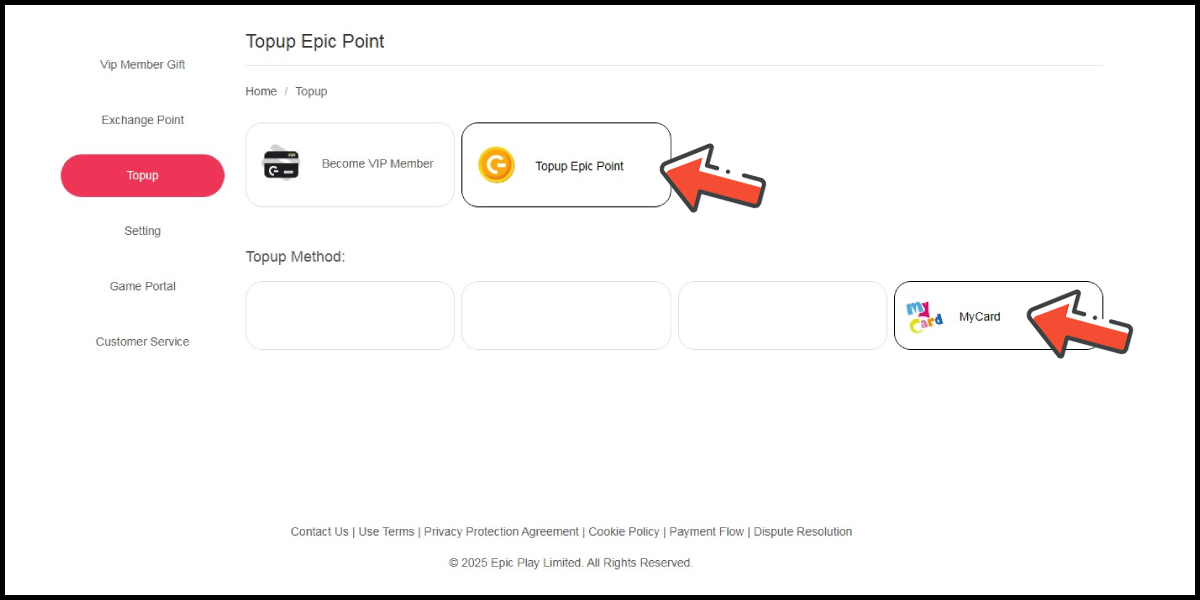
Select the item type, then choose MyCard as the payment method.
Step 3
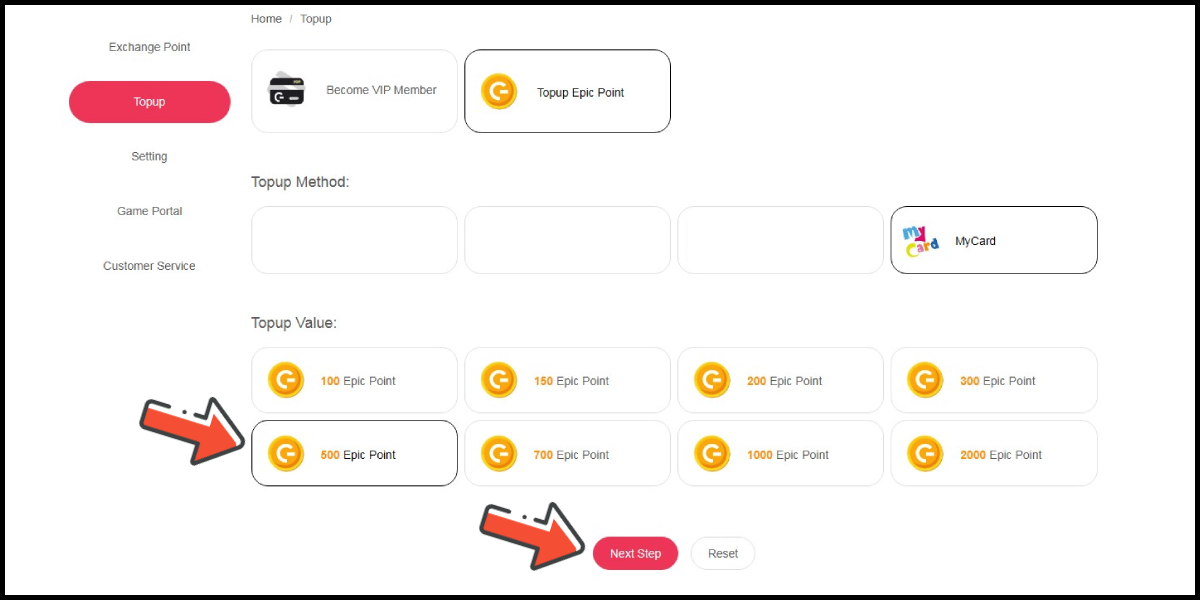
Select the item you want to top up, then click the Next Step button.
Step 4
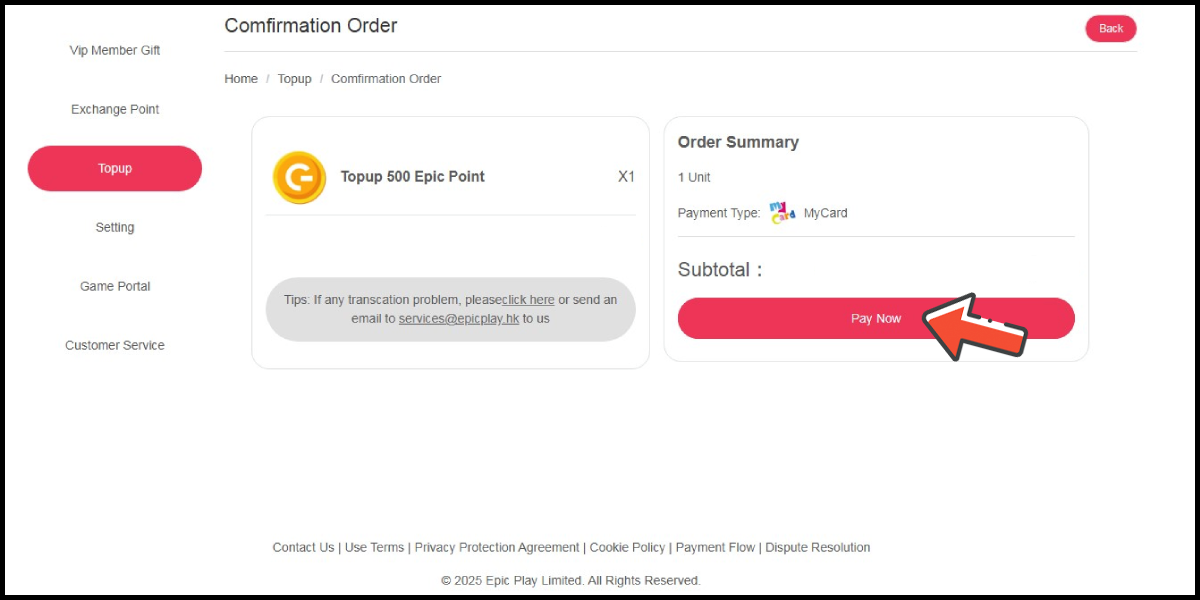
Confirm your top up information, then click the Pay Now button.
Step 5
Select the payment method you want to use. (this guide use E-Wallet as an example)

Step 6
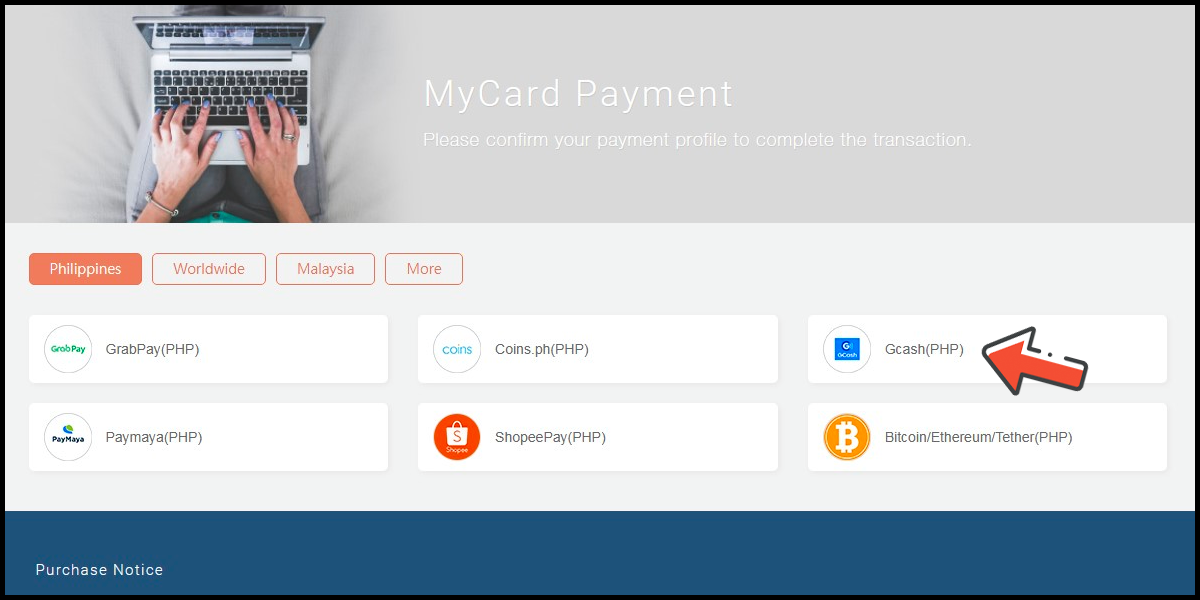
Select the payment channel. (this guide use Gcash as an example)
Step 7
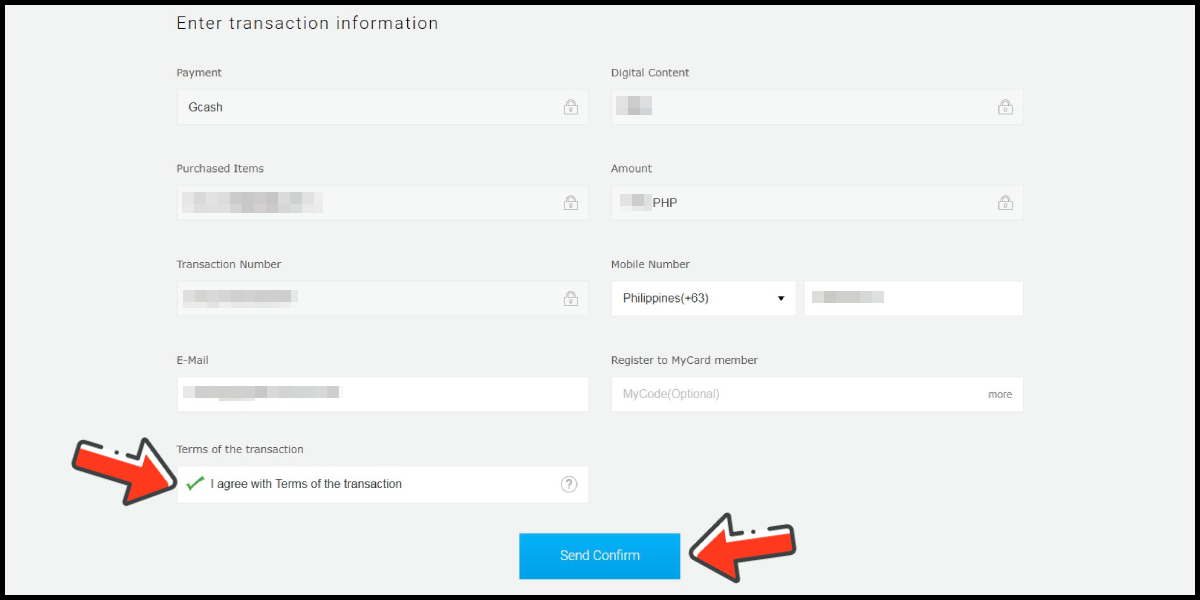
Fill in the required transaction information, tick the "I agree with terms of the transaction" box, and then click "Send Confirm".
Step 8
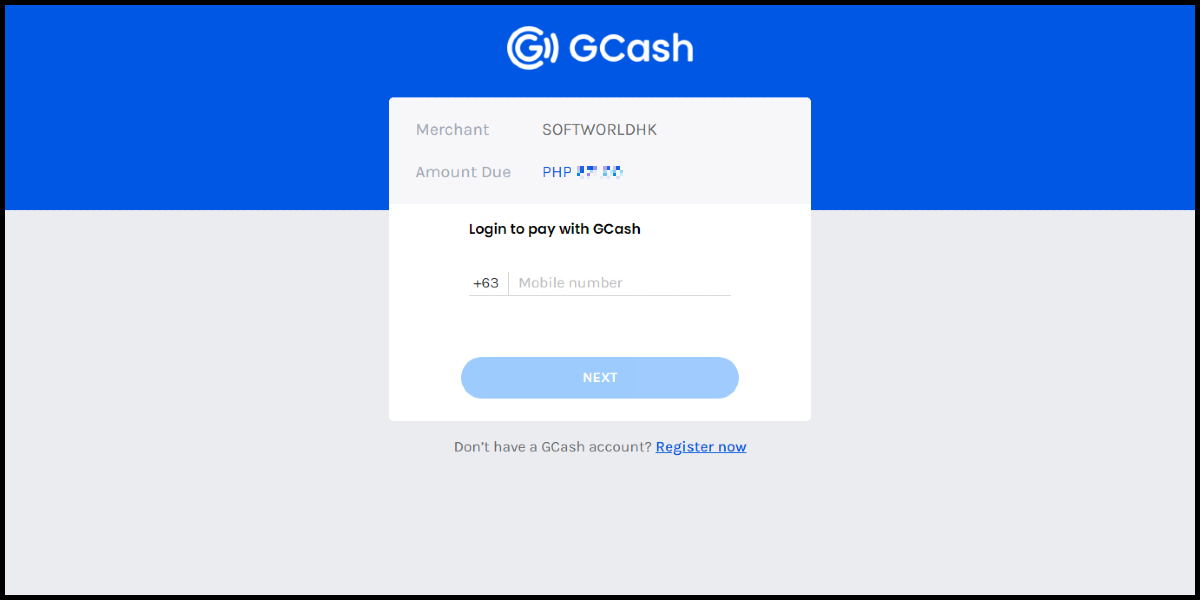
Log in to your Gcash account and carry out the Gcash payment procedure to complete the transaction.
Malaysia Payment Method
Step 1
Click here to go to the top-up page, log in to your game account, and then click "Topup" on the left side of the profile page.
Step 2
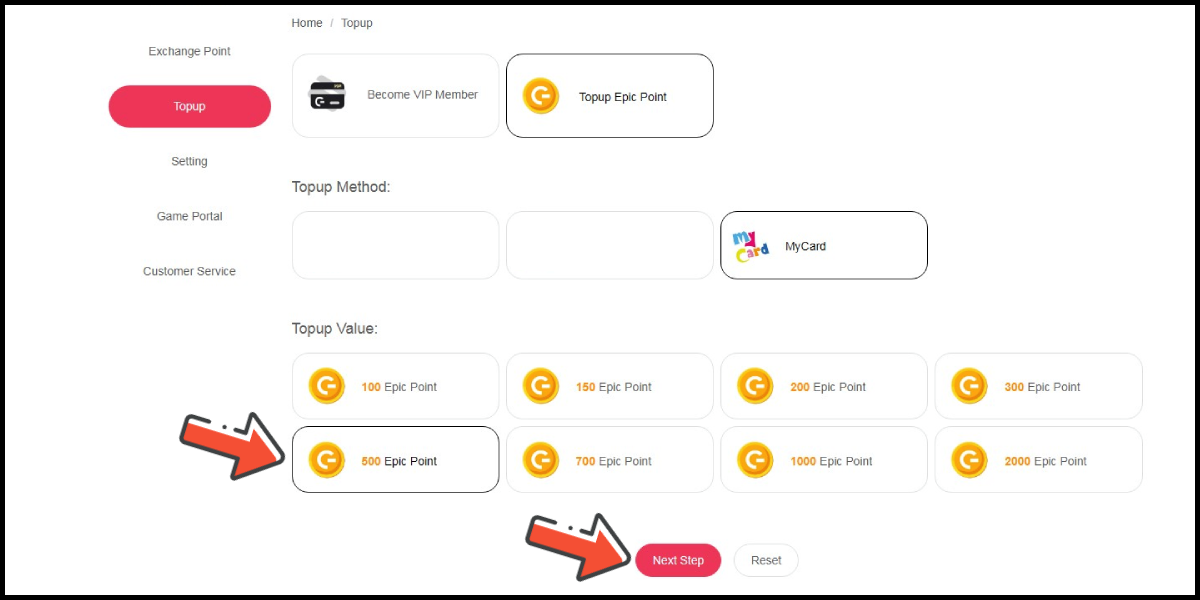
Select the item type, then choose MyCard as the payment method.
Step 3
Select the item you want to top up, then click the Next Step button.
Step 4
Confirm your top up information, then click the Pay Now button.
Step 5
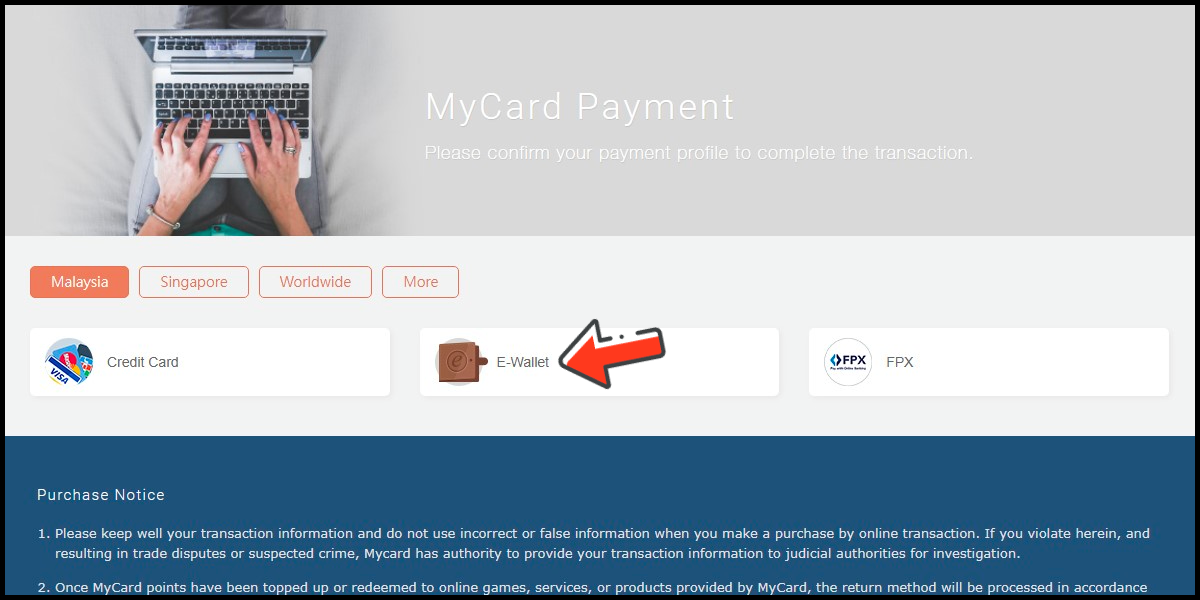
Select the payment method you want to use. (this guide use E-Wallet as an example)
Step 6
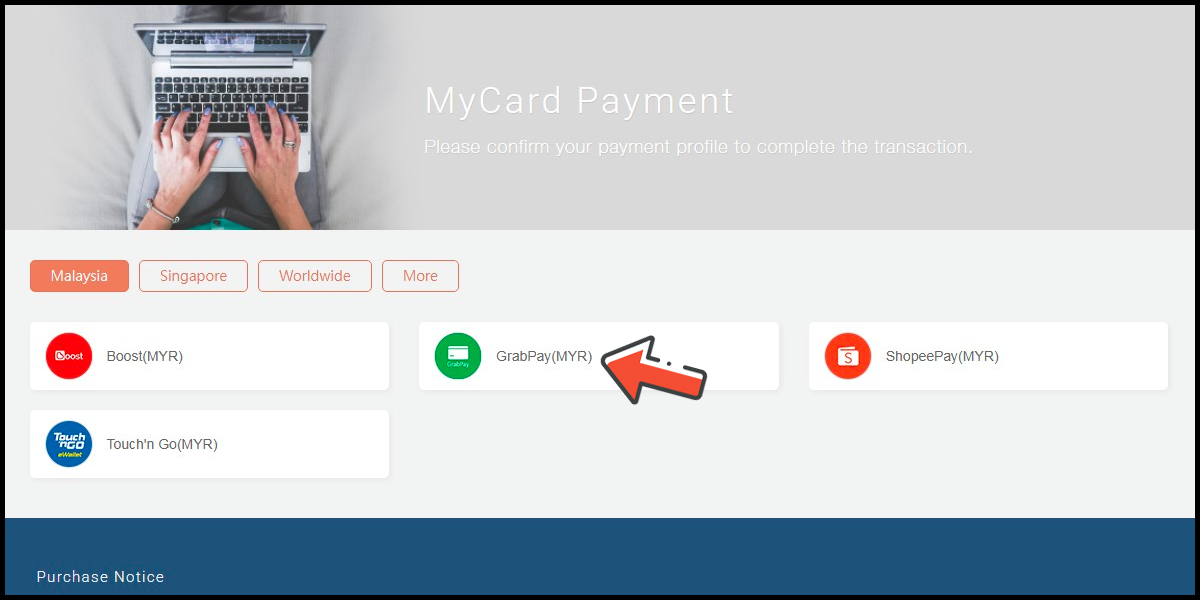
Select the payment channel. (this guide use Grab(MYR) as an example)
Step 7
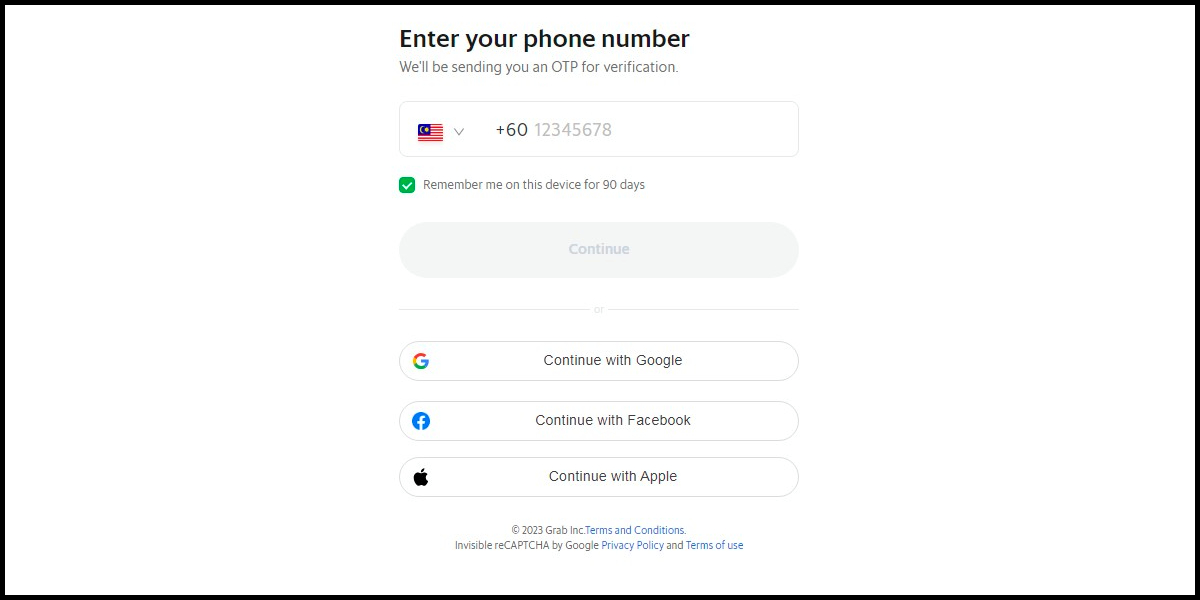
Fill in the required transaction information, then click the "Agree and Submit" button.

Step 8
Carry out the Grab payment procedure to complete the transaction.
Singapore Payment Method
Step 1
Click here to go to the top-up page, log in to your game account, and then click "Topup" on the left side of the profile page.
Step 2
Select the item type, then choose MyCard as the payment method.
Step 3
Select the item you want to top up, then click the Next Step button.
Step 4
Confirm your top up information, then click the Pay Now button.
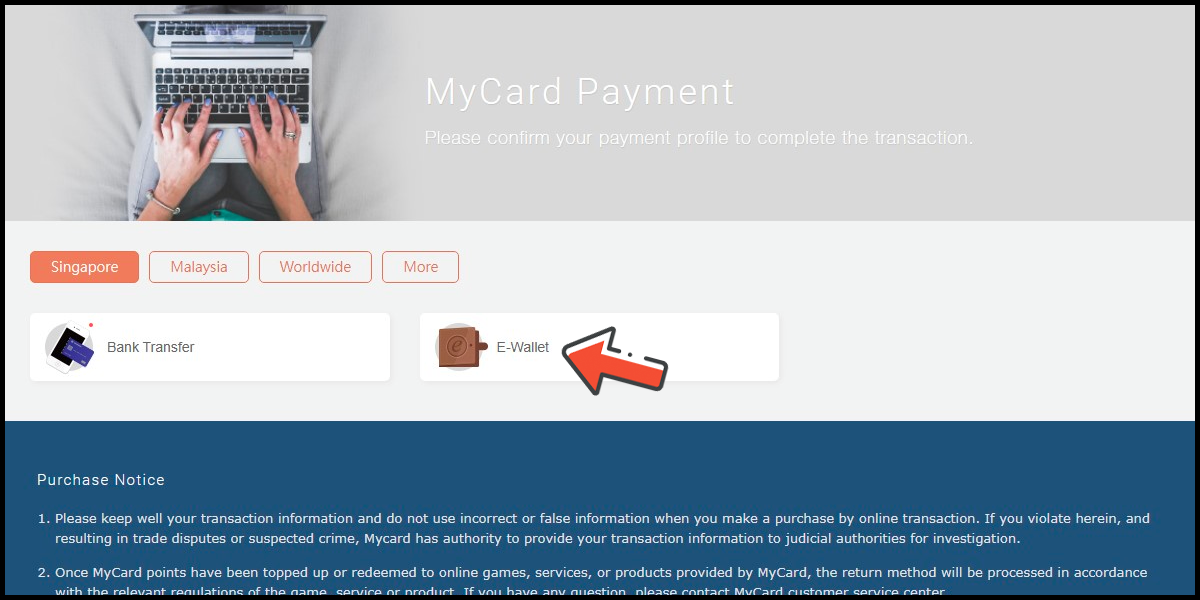
Step 5
Select the payment method you want to use. (this guide use E-wallet as an example)
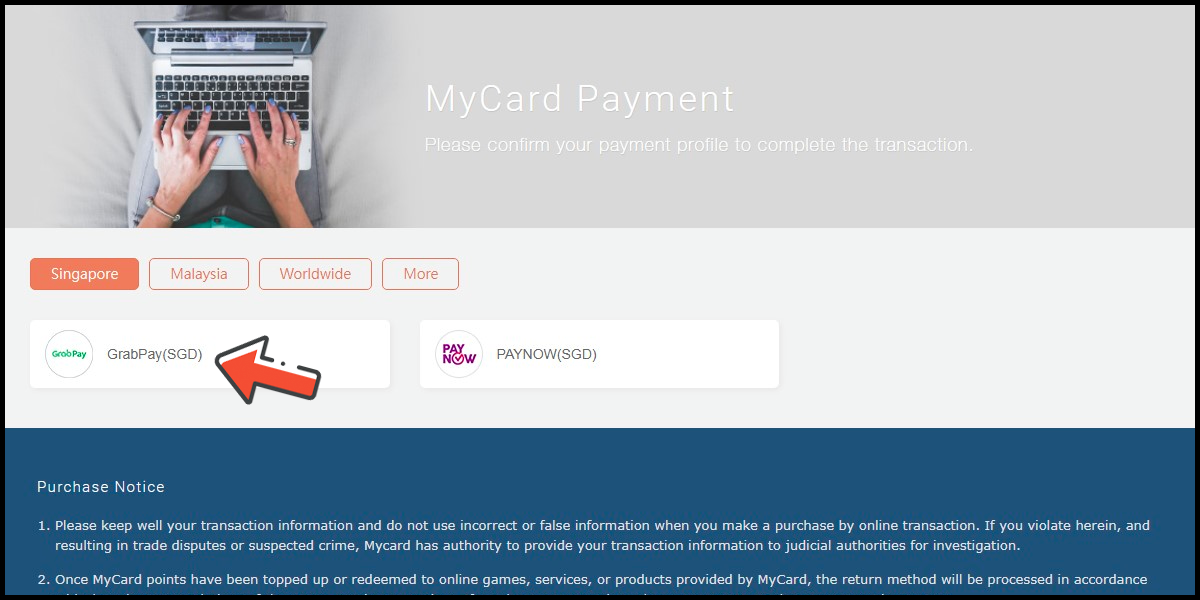
Step 6
Select the payment channel. (this guide use GrabPay (SGD) as an example)
Step 7
Fill in the required transaction information, then click the "Agree and Submit" button.

Step 8
Carry out the payment procedure to complete the transaction.