Popular Keyword
TopIsekai

- MyCard Wallet
- PayPal
MyCard Wallet
Step 1
Click here to go to the top up page, enter your Player ID, then click the Login button.

Step 2
Select the item you want to top up.

Step 3
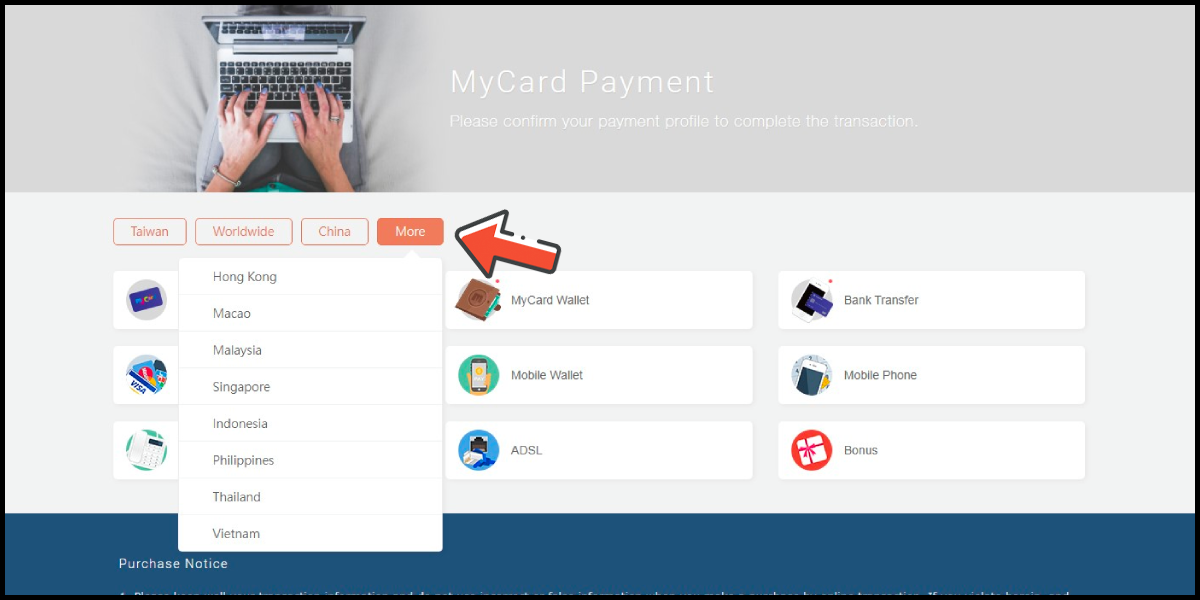
You will enter the MyCard Payment page, the available payment methods vary depending on your location, click "More" as shown by the arrow in the image to switch to the payment method for each country/region. (Please choose Taiwan as the payment region)
Step 4
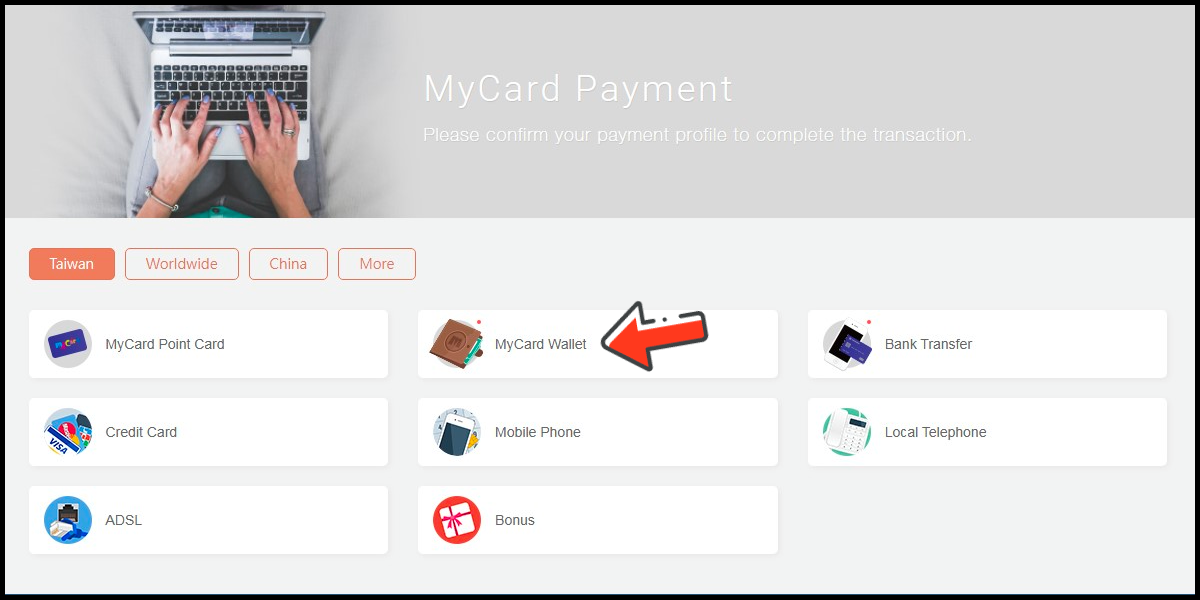
Select "MyCard Wallet" as the payment method.
Step 5
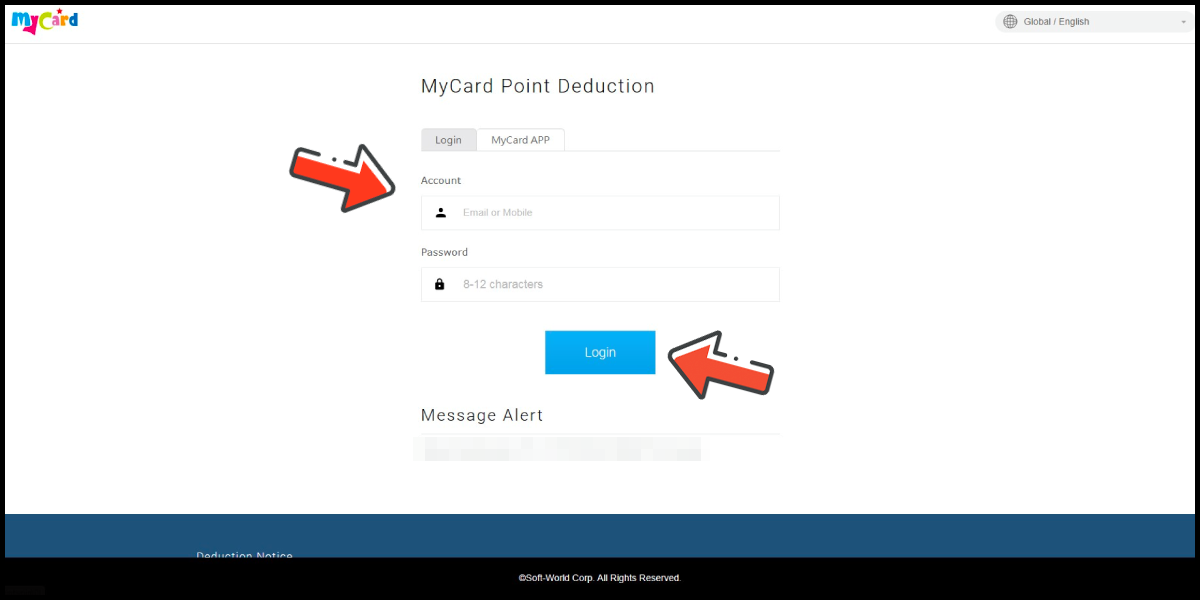
Log in to your MyCard member account. (You can also pay by MyCard App)
Step 6
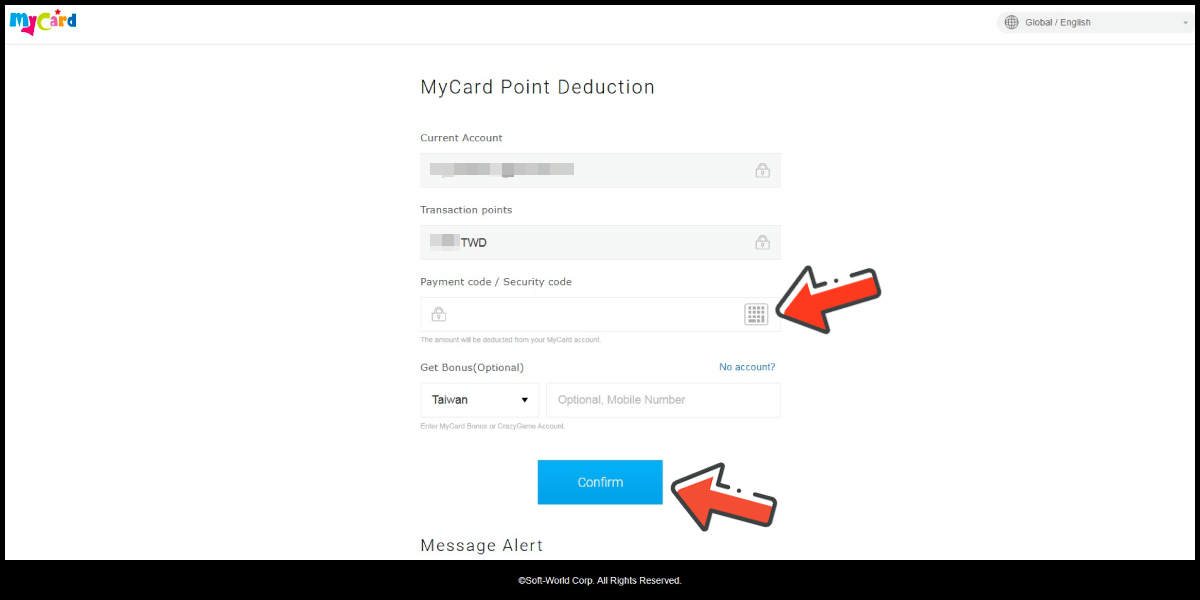
Enter the payment password, mobile number (optional), and then click "Confirm" to complete the top up process.
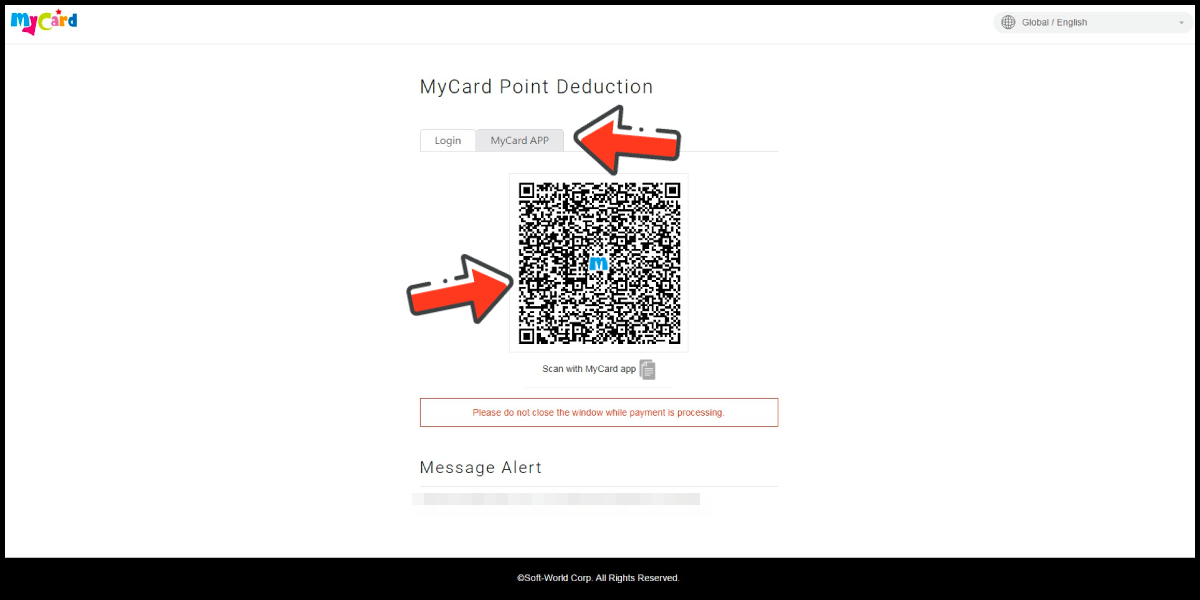
Pay by MyCard App
Click the "MyCard APP" tab which is pointed by the arrow in the picture, open the MyCard app in your mobile device and scan the QR Code on the top up page to complete the top up process. (Not the QR Code in this guide page)
Global Payment Method (PayPal)
Step 1
Click here to go to the top up page, enter your Player ID, then click the Login button.
Step 2
Select the item you want to top up.
Step 3
You will enter the MyCard Payment page, the available payment methods vary depending on your location, click "More" as shown by the arrow in the image to switch to the payment method for each country/region. (Please choose Worldwide as the payment region)
Step 4
Select the payment method you want to use. (this guide use PayPal as an example)


Step 5
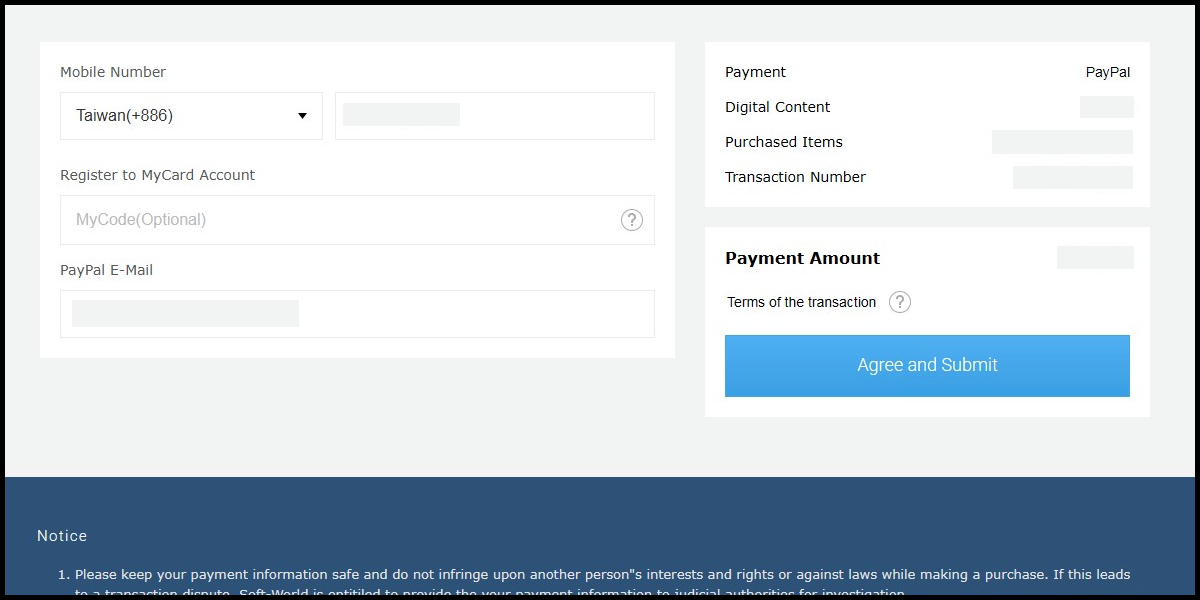
Fill in the required transaction information, then click the "Agree and Submit" button.
Step 6
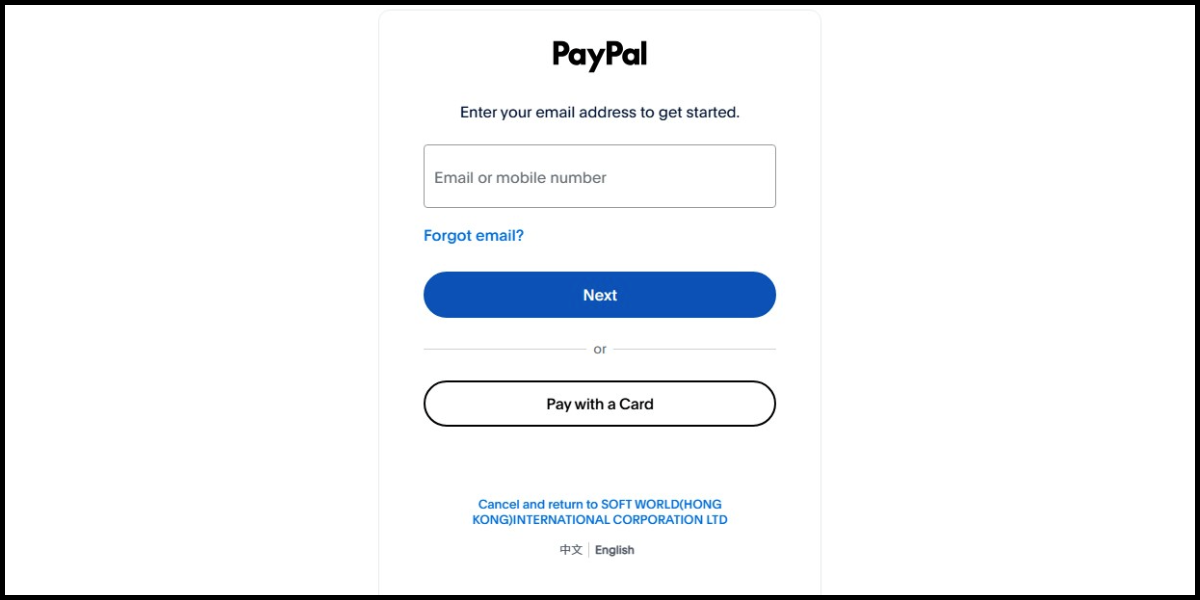
Log in to your paypal account and carry out the payment procedure to complete the transaction.