Popular Keyword
Rich Boss

- Philippines Payment
- Malaysia Payment
- Global Payment
- MyCard Point Card
- MyCard Wallet
Philippines Payment Method
Step 1
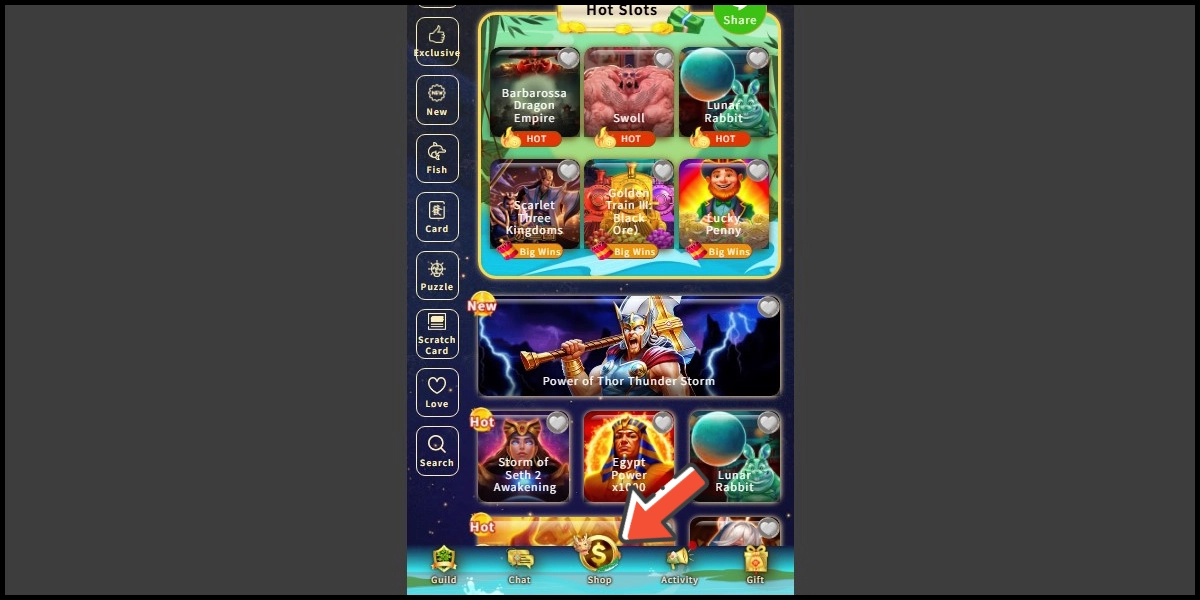
Click here to go to the top-up page, log in to your game account, then click the Shop icon on the bottom menu.
Step 2
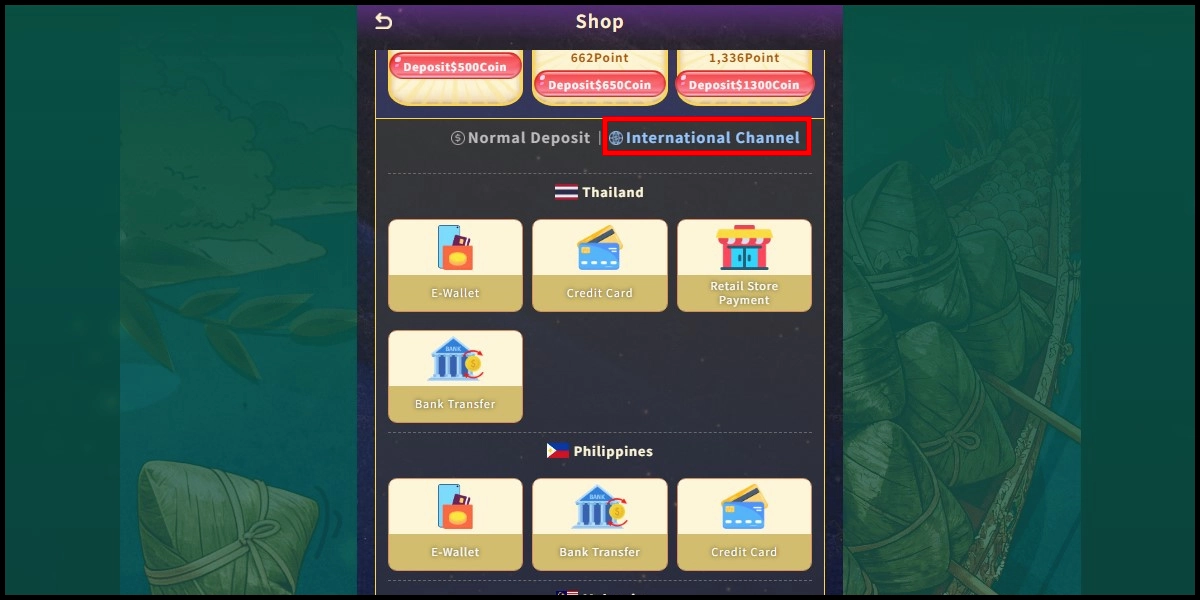
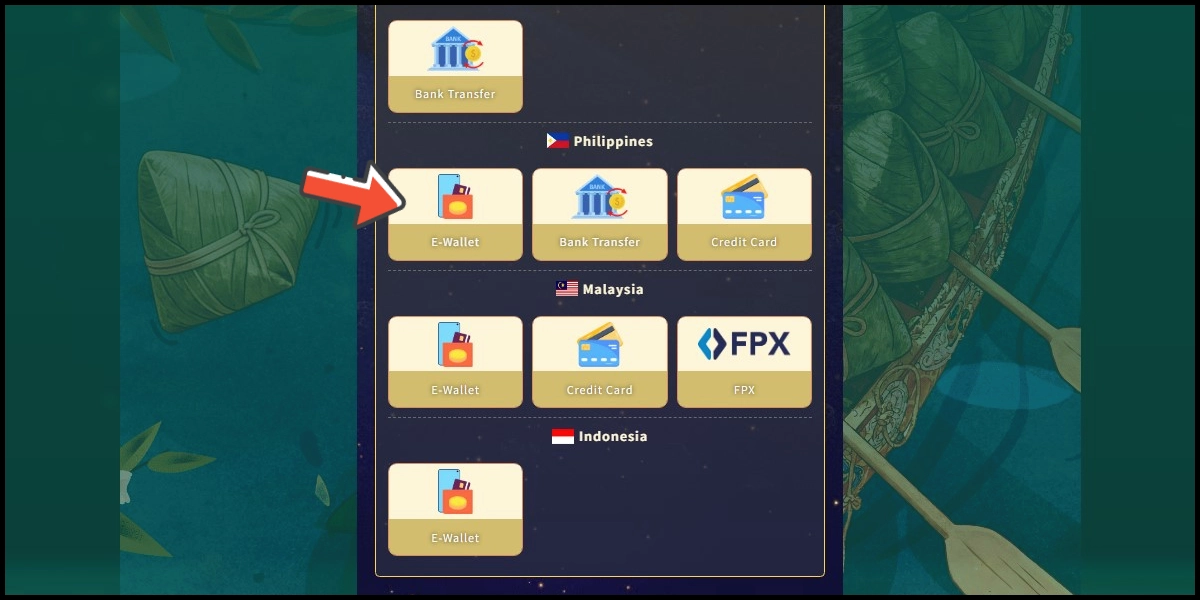
Select International Channel, then select E-wallet under the Philippines section. (this guide use E-Wallet as an example)
Step 3
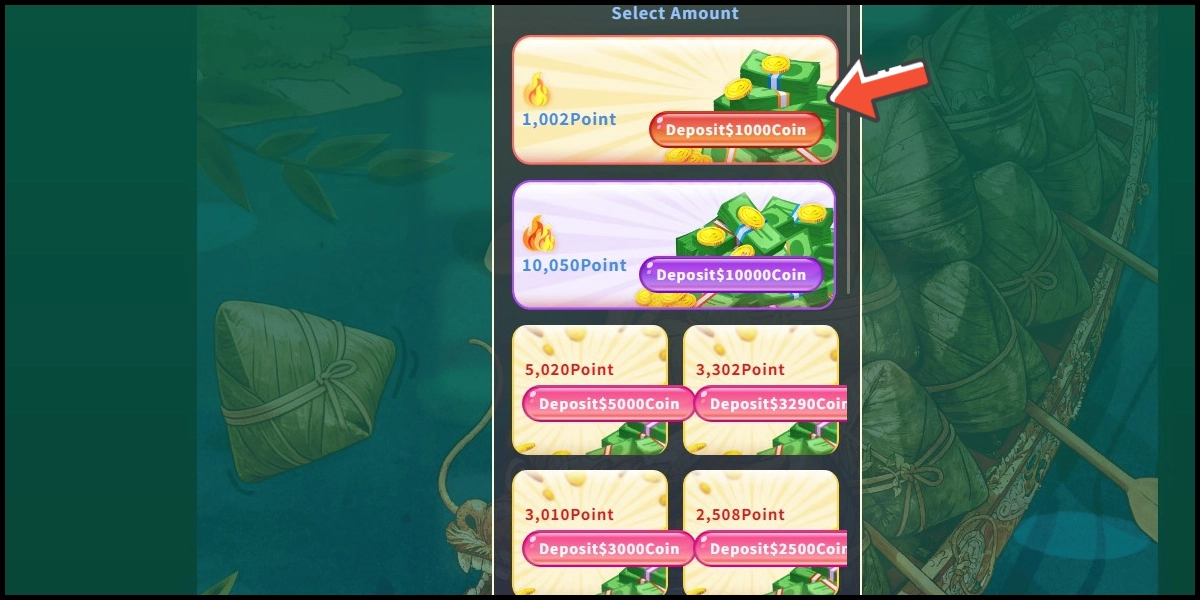
Select the item you want to top up.
Step 4
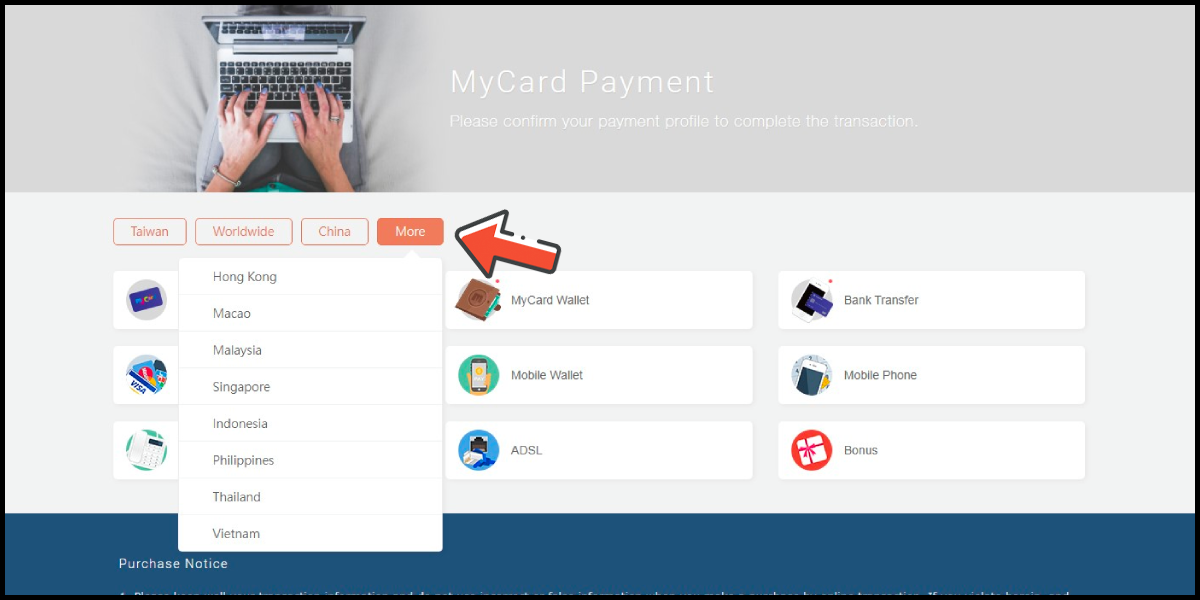
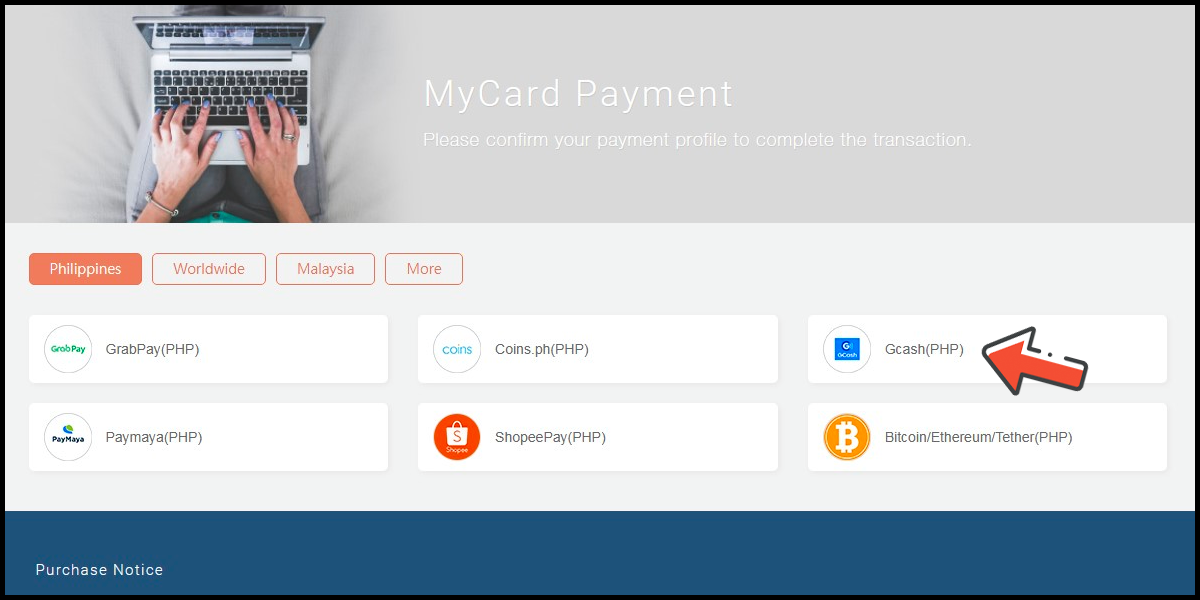
You will enter the MyCard Payment page, the available payment methods vary depending on your location, click "More" as shown by the arrow in the image to switch to the payment method for each country/region.
Step 5
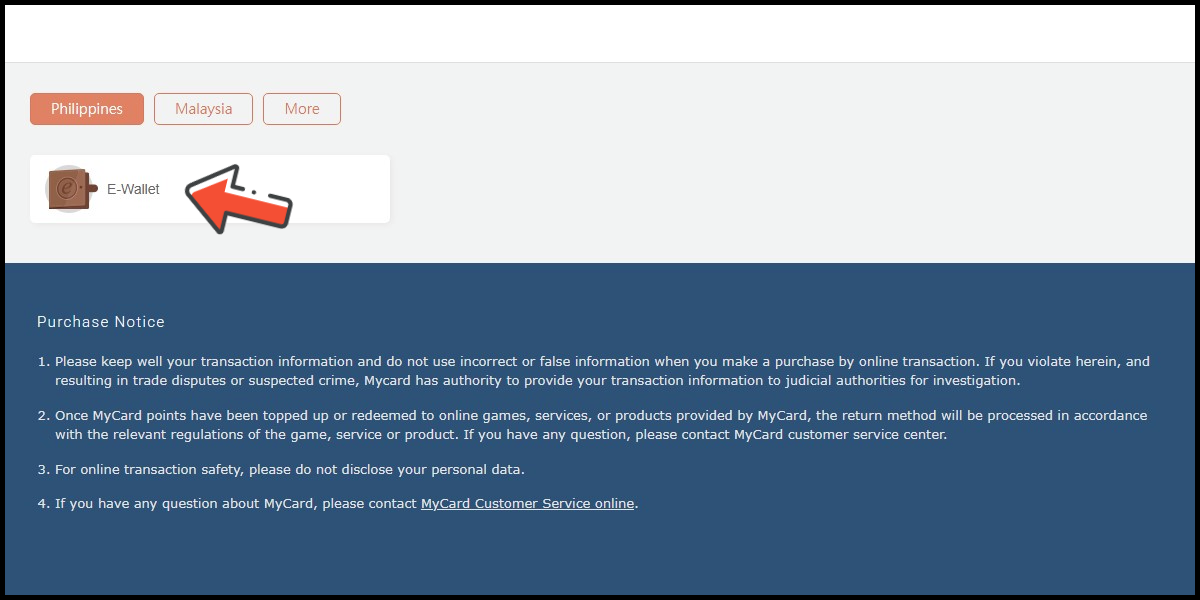
Select the payment method you want to use.
Step 6
Select the payment channel. (this guide use Gcash as an example)
Step 7
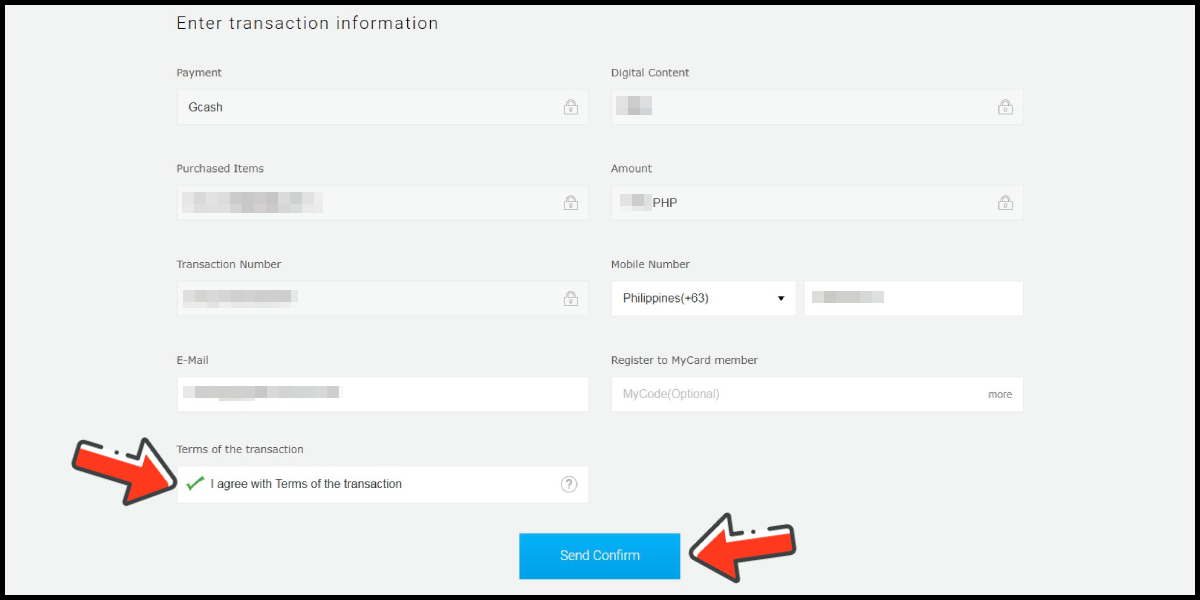
Fill in the required transaction information, then click the "Agree and Submit" button.
Step 8
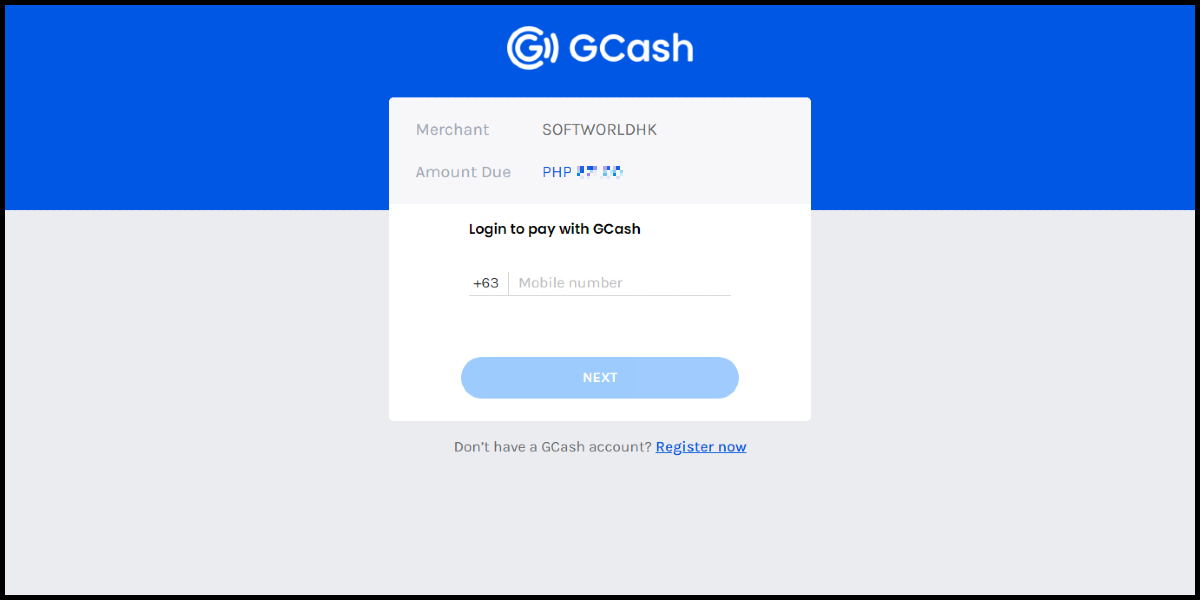
Log in to your Gcash account and carry out the Gcash payment procedure to complete the transaction.
Malaysia Payment Method
Step 1
Click here to go to the top-up page, log in to your game account, then click the Shop icon on the bottom menu.
Step 2
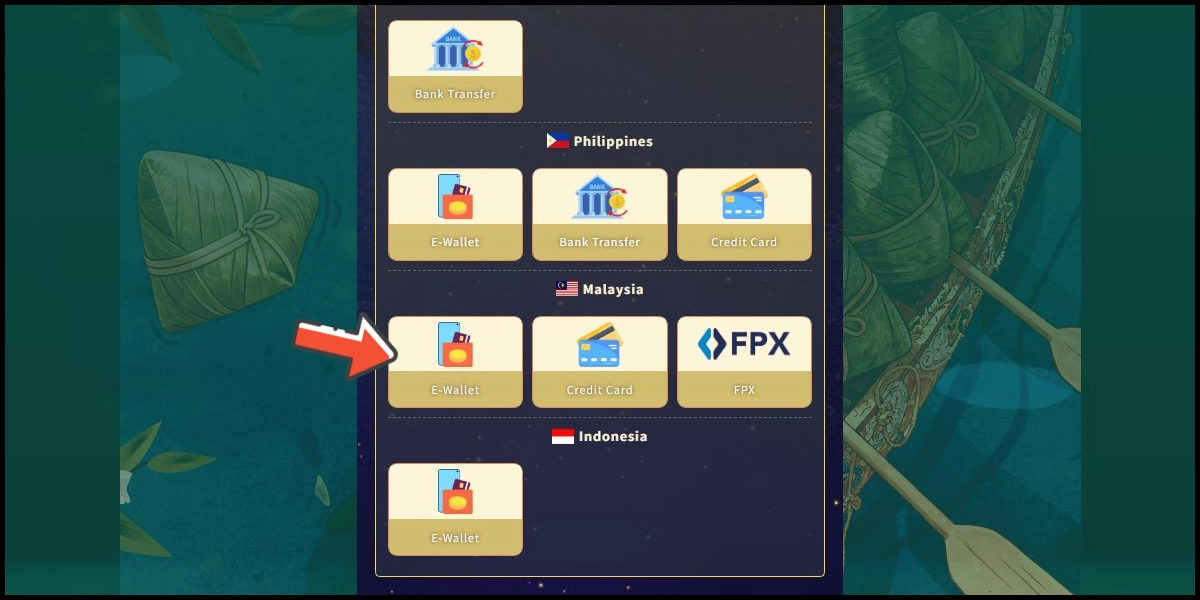
Select International Channel, then select E-wallet under the Malaysia section. (this guide use E-Wallet as an example)
Step 3
Select the item you want to top up.
Step 4
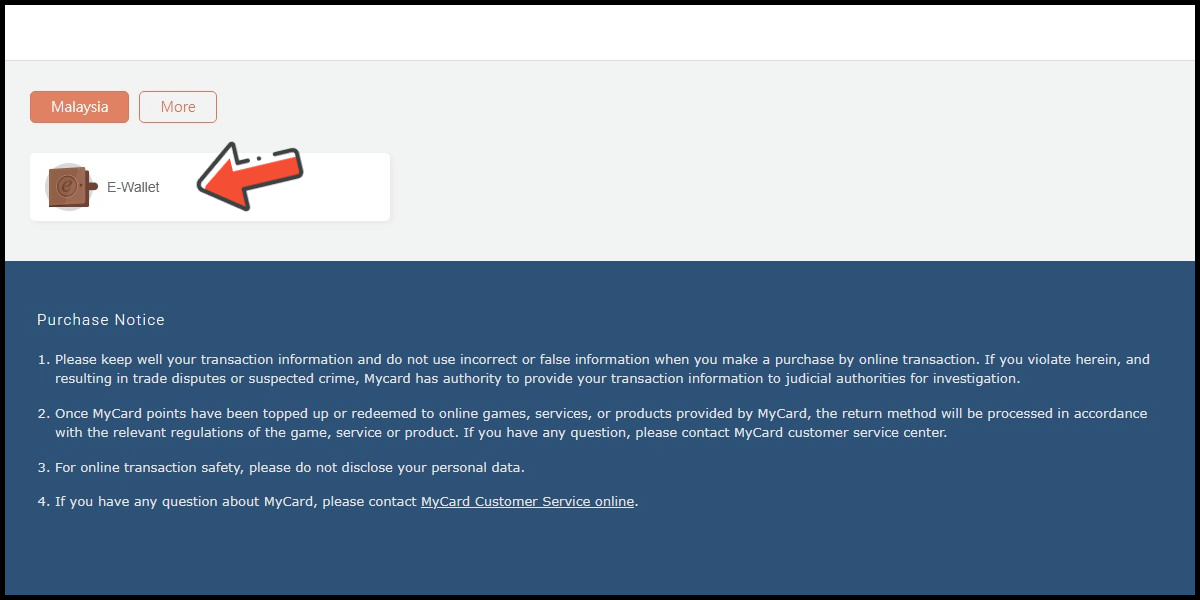
You will enter the MyCard Payment page, the available payment methods vary depending on your location, click "More" as shown by the arrow in the image to switch to the payment method for each country/region.
Step 5
Select the payment method you want to use.
Step 6
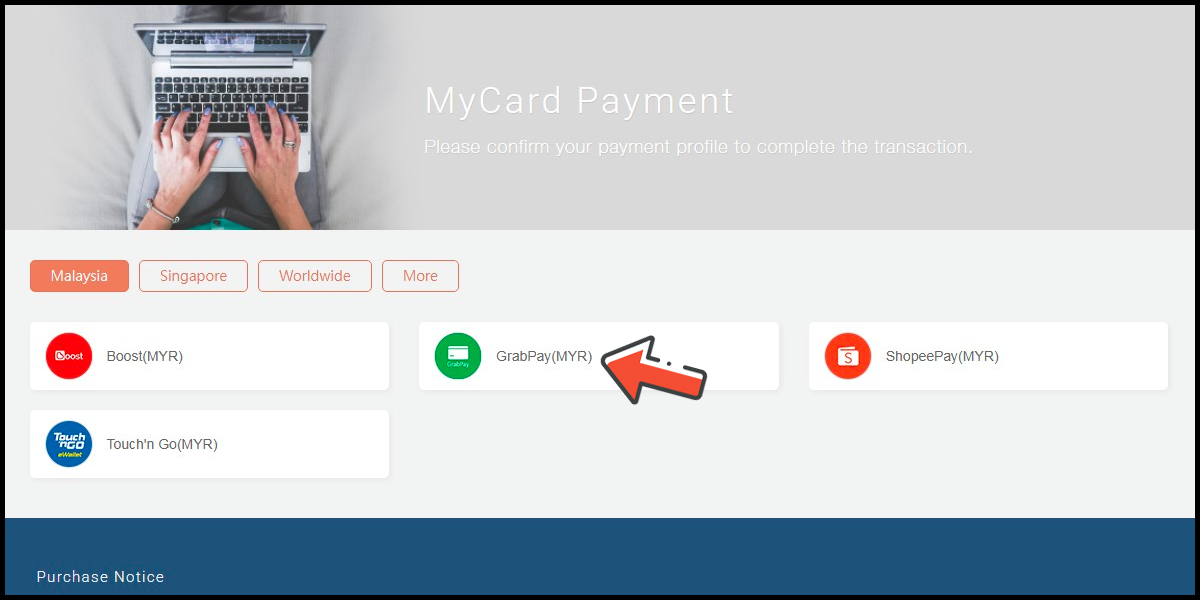
Select the payment channel. (this guide use Grab(MYR) as an example)
Step 7
Fill in the required transaction information, then click the "Agree and Submit" button.

Step 8
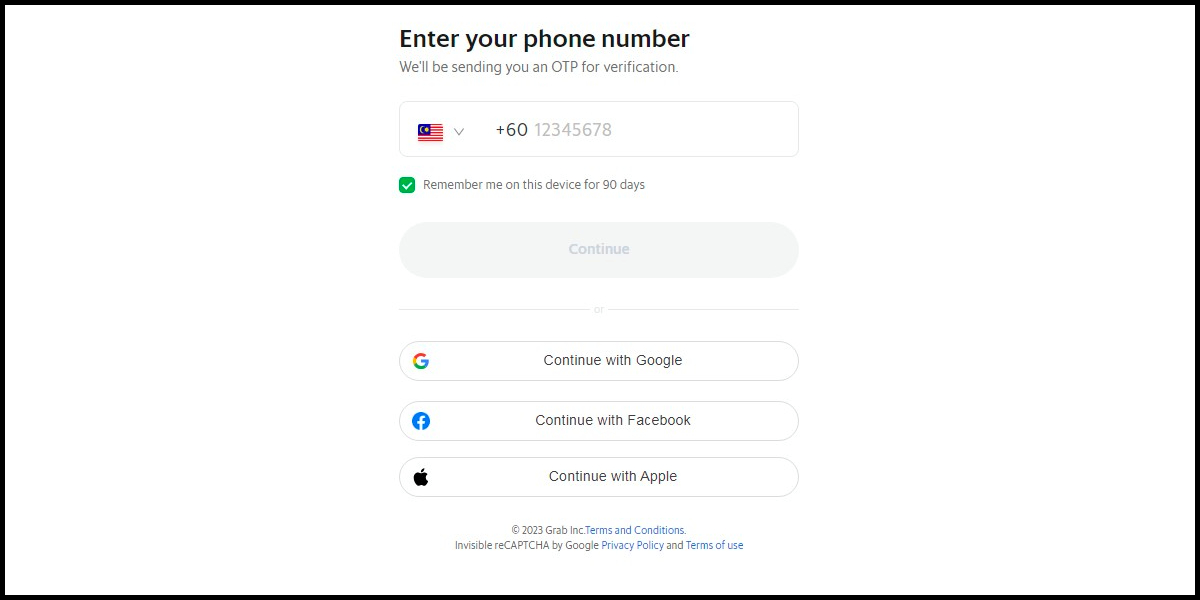
Carry out the Grab payment procedure to complete the transaction.
Global Method
Step 1
Click here to go to the top-up page, log in to your game account, then click the Shop icon on the bottom menu.
Step 2
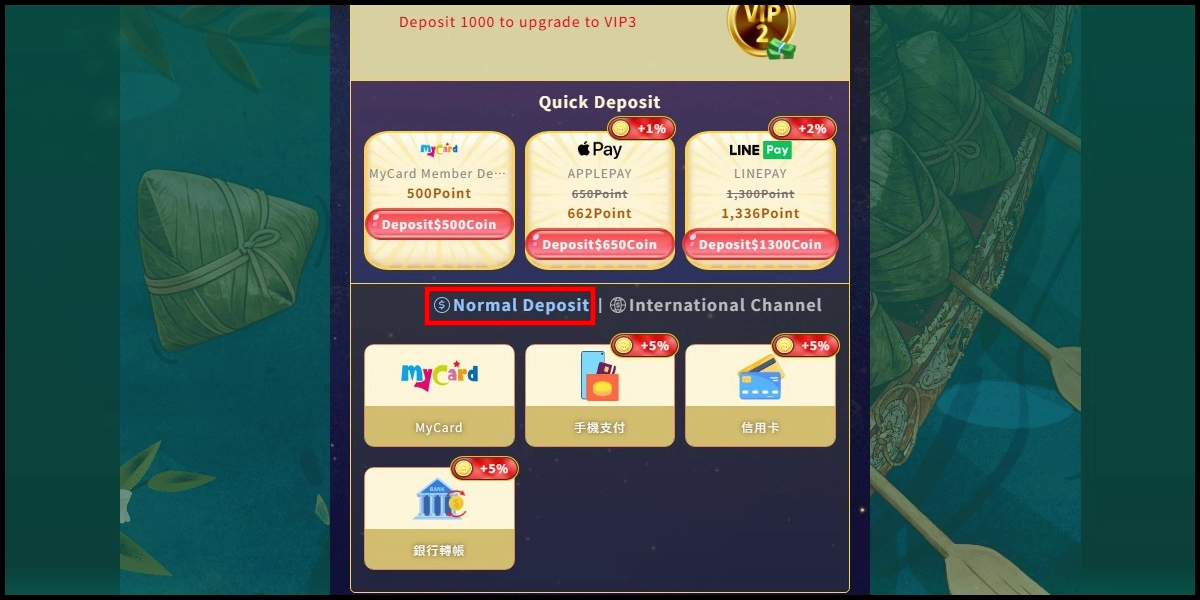
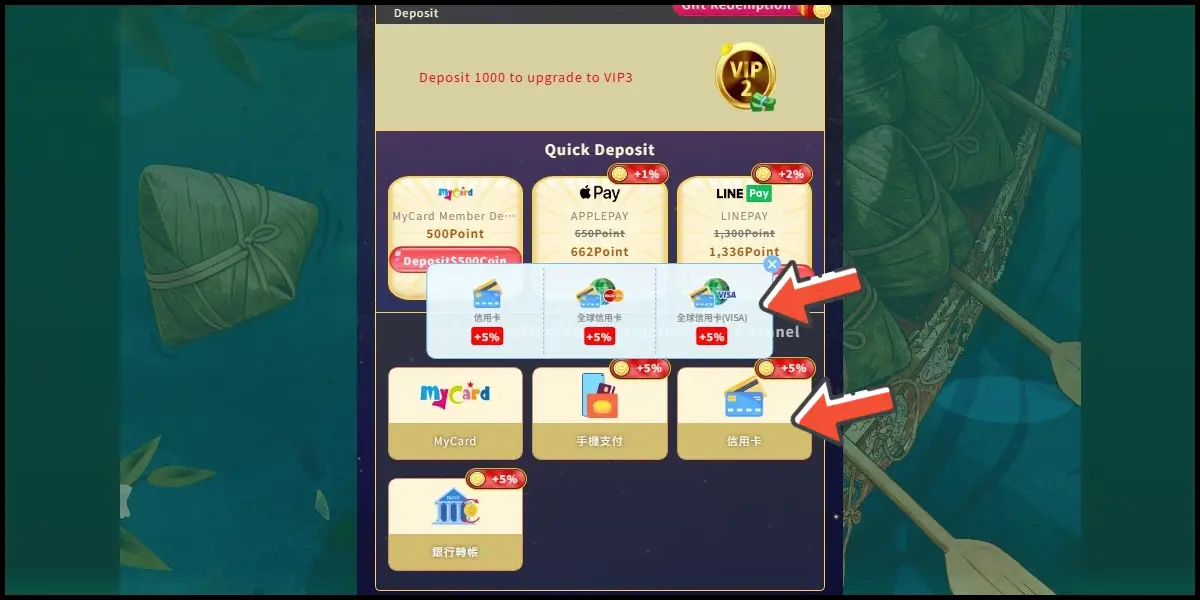
Select Normal Deposit.
Step 3
Select 信用卡 (Credit Card), then select 全球信用卡(VISA) (Global Credit Card VISA).
Step 4
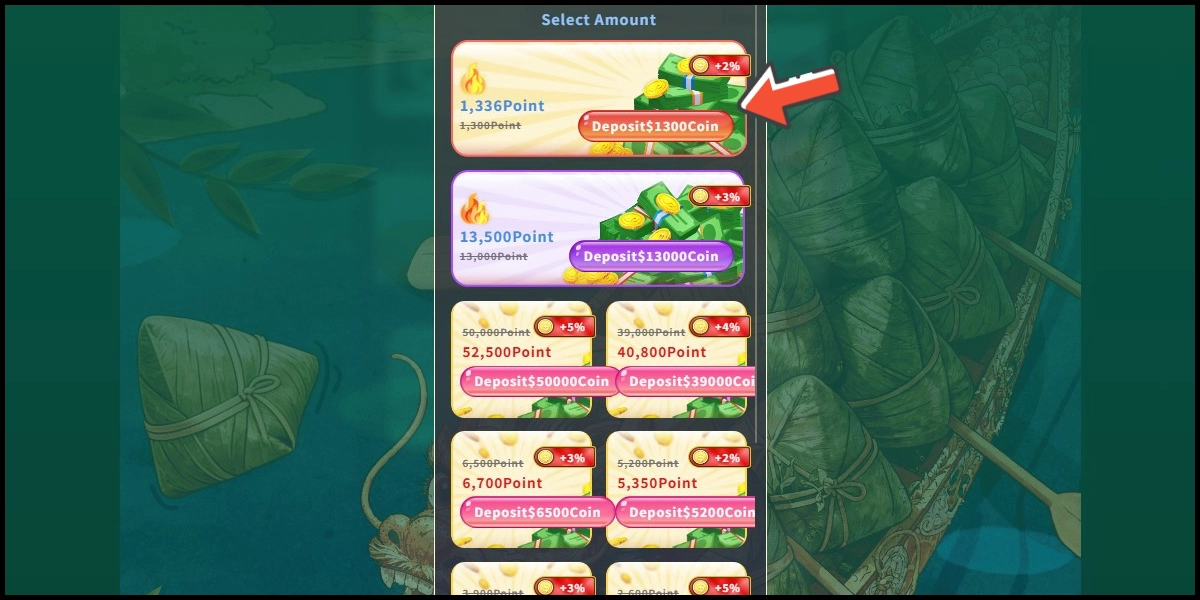
Select the item you want to top up.
Step 5
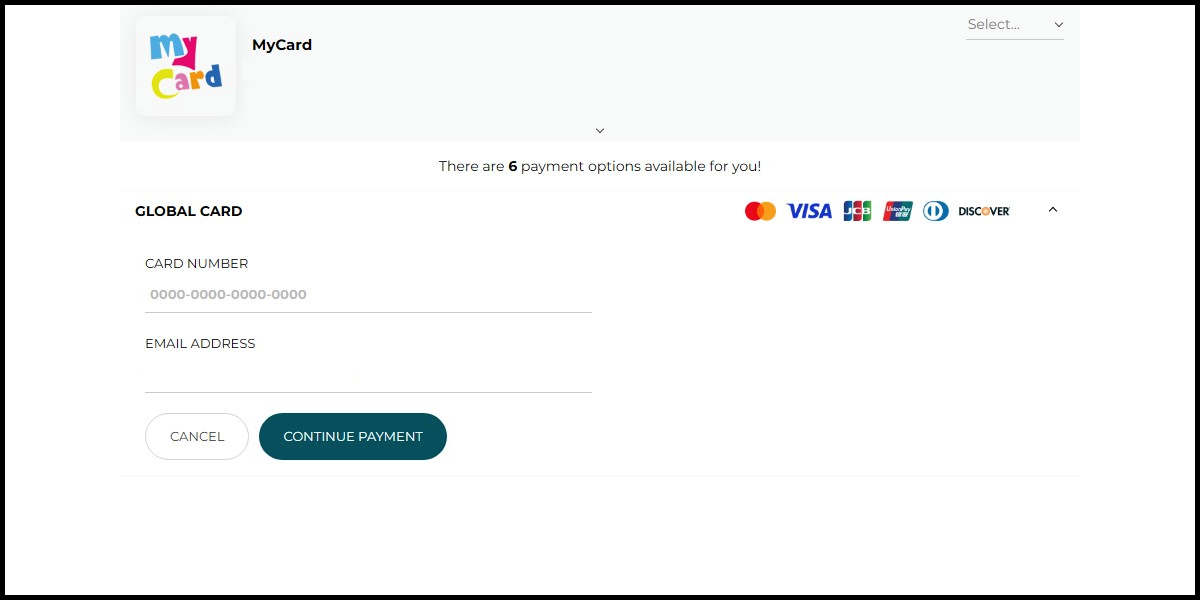
Fill in the required transaction information, then click the "Agree and Submit" button.

Step 6
Carry out the payment procedure to complete the transaction.
MyCard Point Card
※MyCard point card only available for specified top up amount, if you wish to top up different amount, you can top up your MyCard point card to your MyCard member account, and use MyCard Wallet to top up the game. How to top up MyCard Point Card to member account
Step 1
Click here to go to the top-up page, log in to your game account, then click the Shop icon on the bottom menu.
Step 2
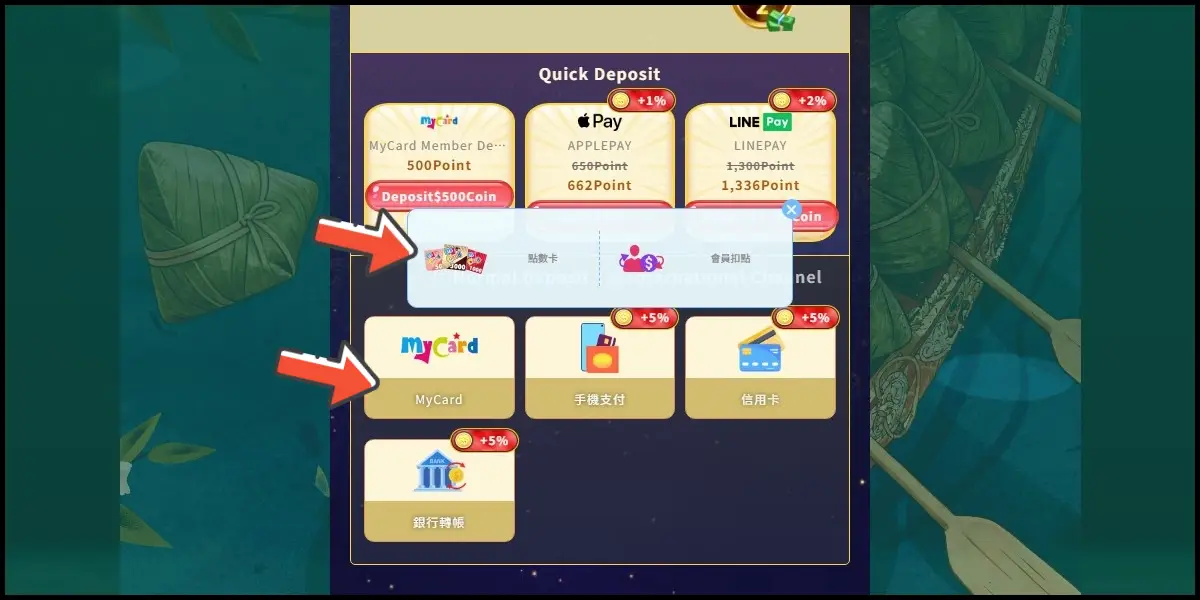
Select Normal Deposit.
Step 3
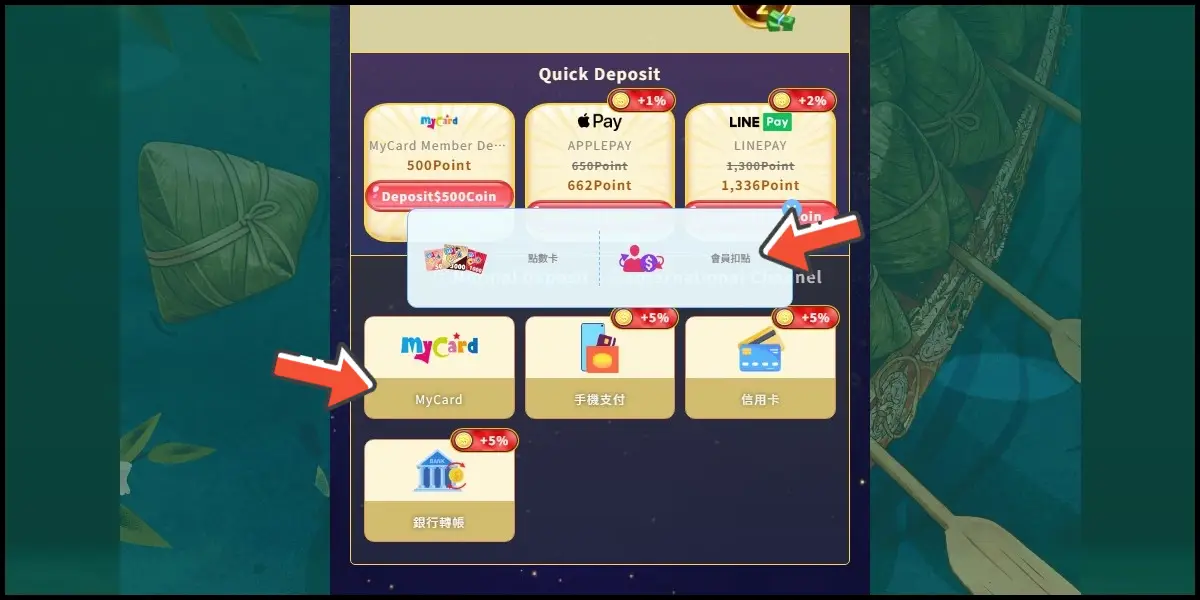
Select MyCard, then select 點數卡 (MyCard Point Card).
Step 4
Select the item you want to top up.
Step 5
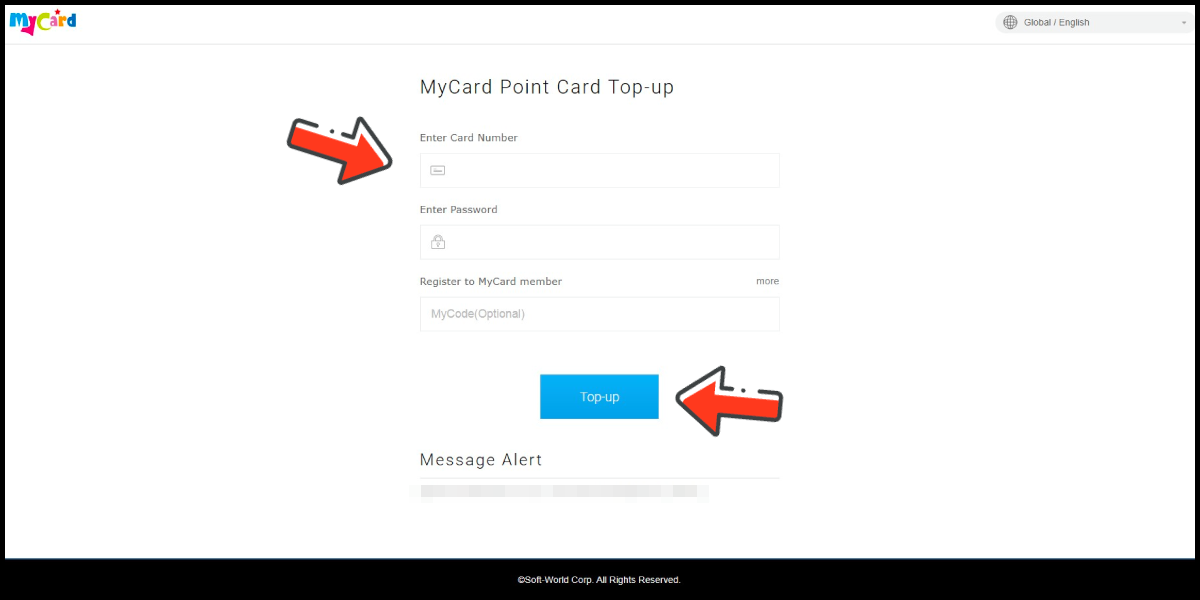
Enter MyCard card number and password and click "Top-up" to complete the top up process.
MyCard Wallet
Step 1
Click here to go to the top-up page, log in to your game account, then click the Shop icon on the bottom menu.
Step 2
Select Normal Deposit.
Step 3
Select MyCard, then select 會員扣點 (MyCard Wallet).
Step 4
Select the item you want to top up.
Step 5
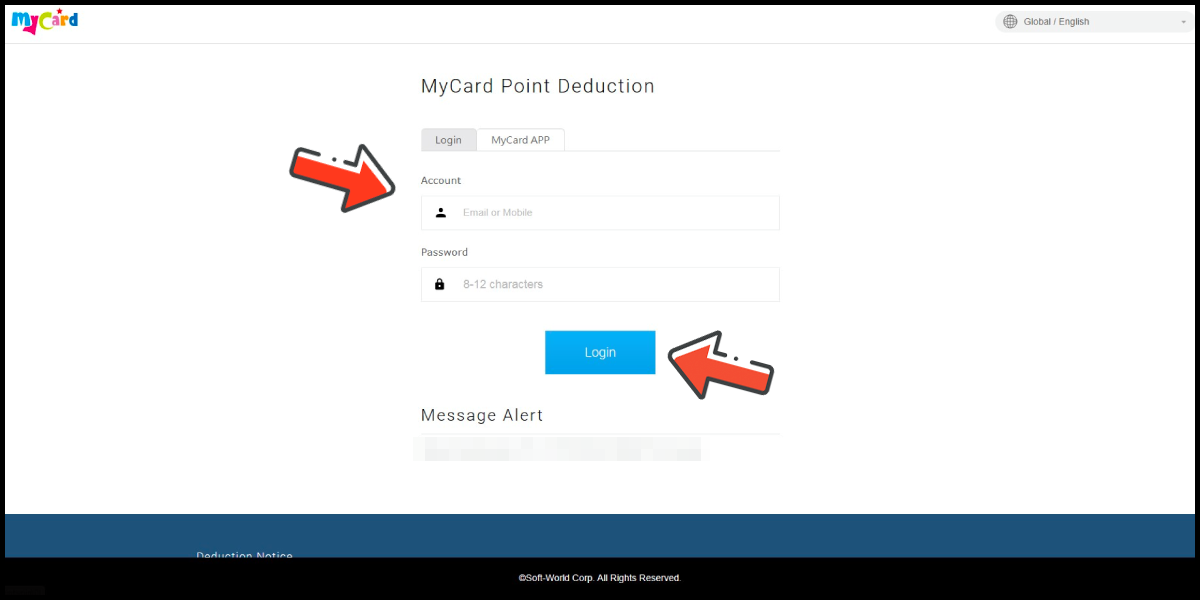
Log in to your MyCard member account. (You can also pay by MyCard App)
Step 6
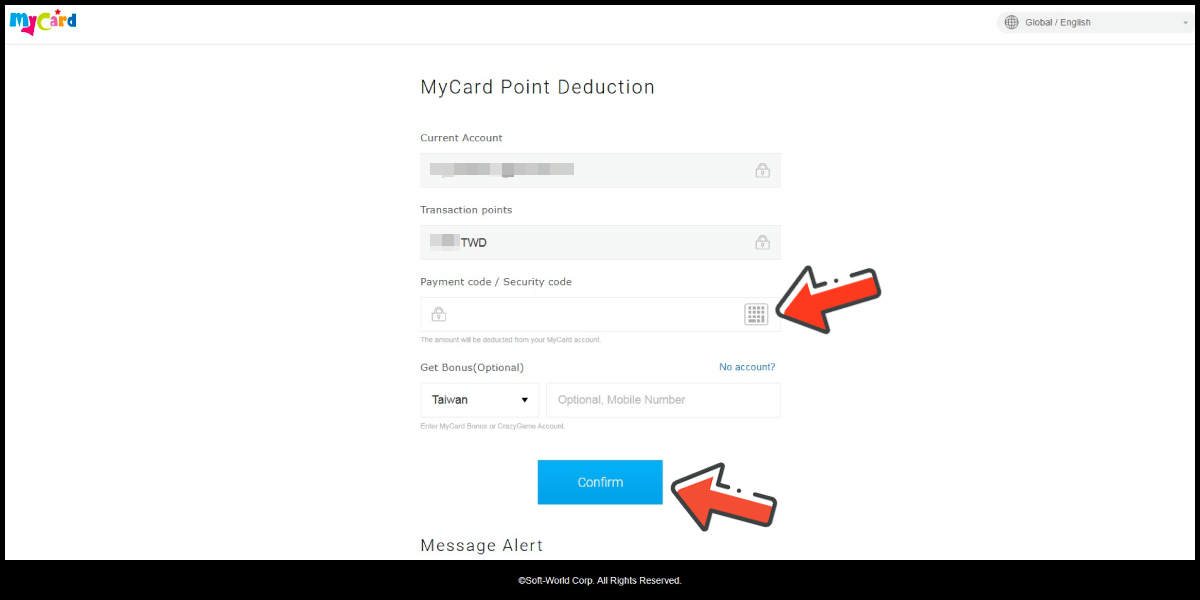
Enter the payment password, mobile number (optional), and then click "Confirm" to complete the top up process.
Pay by MyCard App
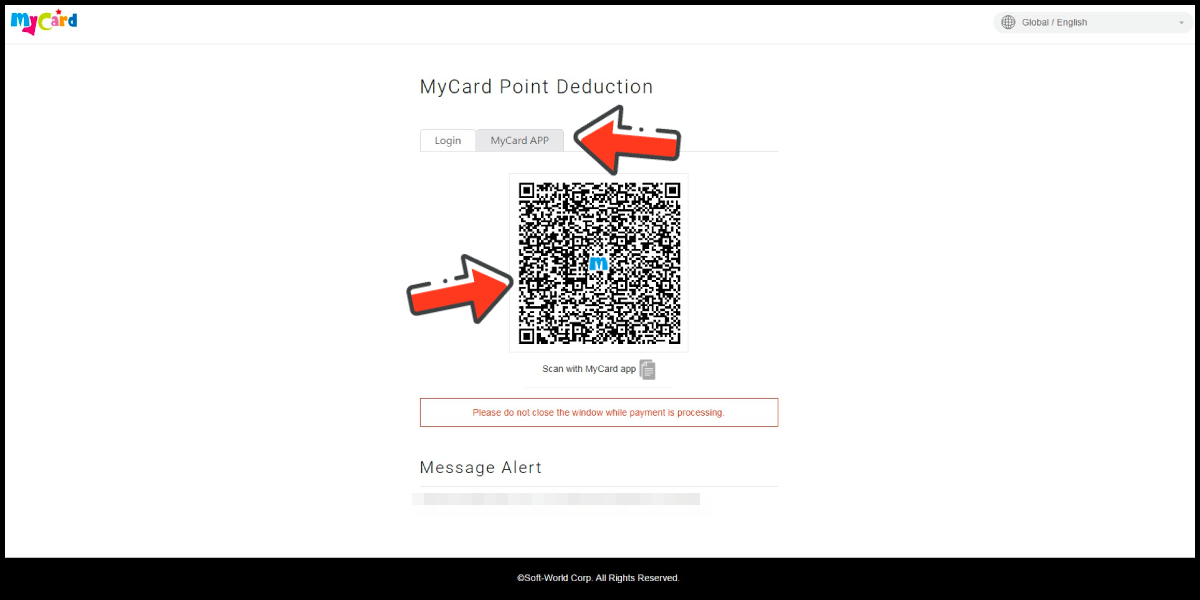
Click the "MyCard APP" tab which is pointed by the arrow in the picture, open the MyCard app in your mobile device and scan the QR Code on the top up page to complete the top up process. (Not the QR Code in this guide page)