Popular Keyword
Frost Kingdom

- Philippines Payment
- MyCard Wallet
Philippines Payment Method
Step 1
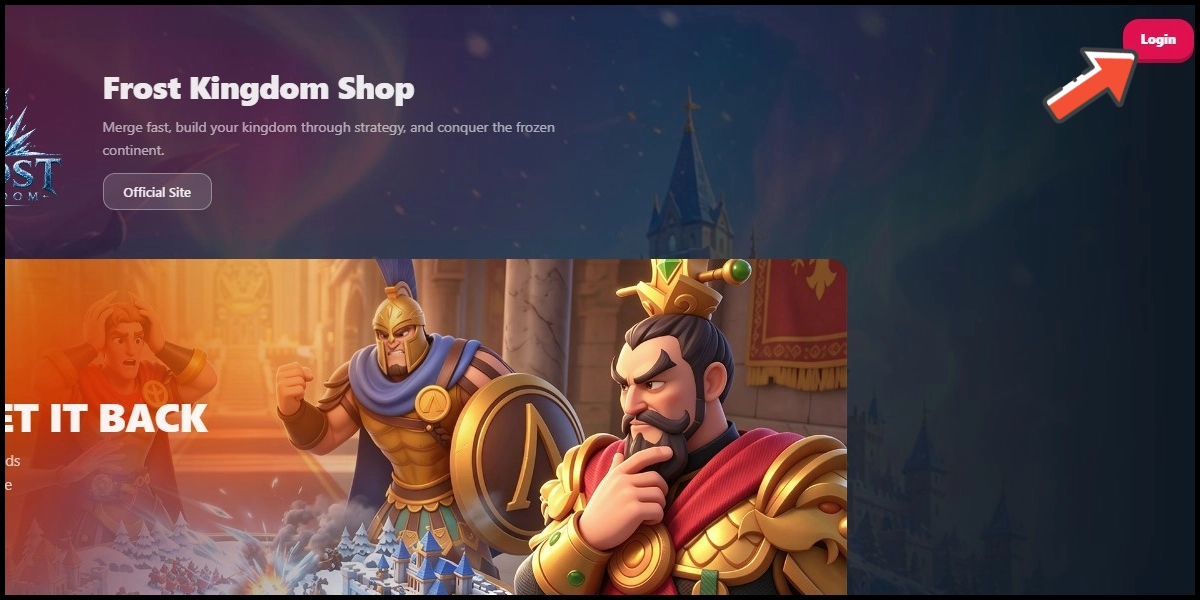
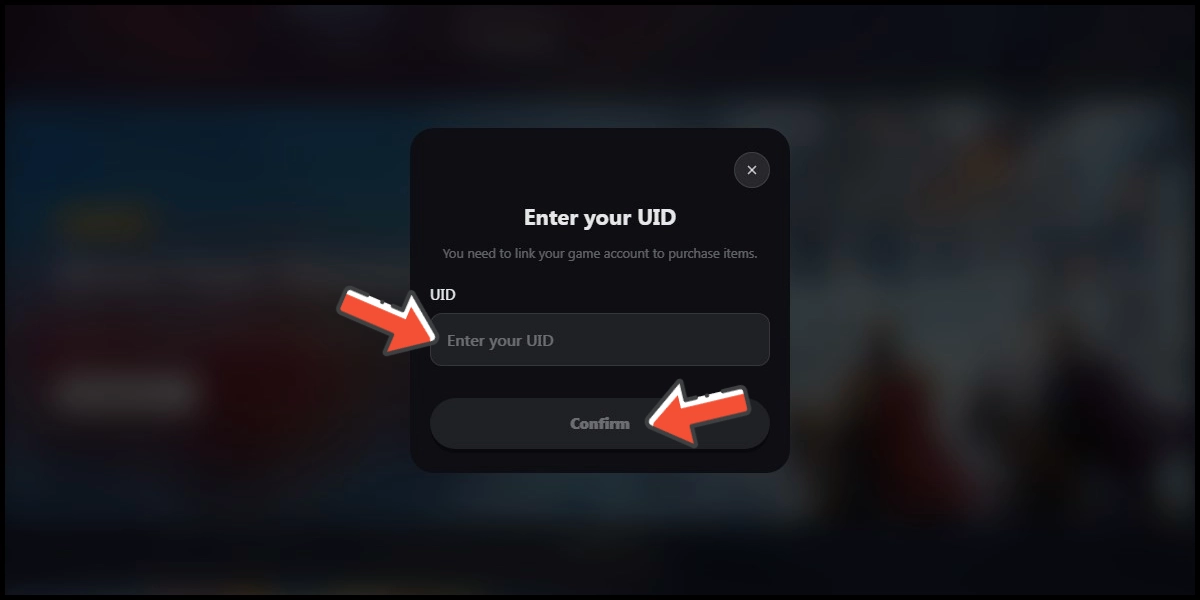
Click here to go to the top-up page, click the Login button, enter your game UID, then click the Confirm button.
Step 2
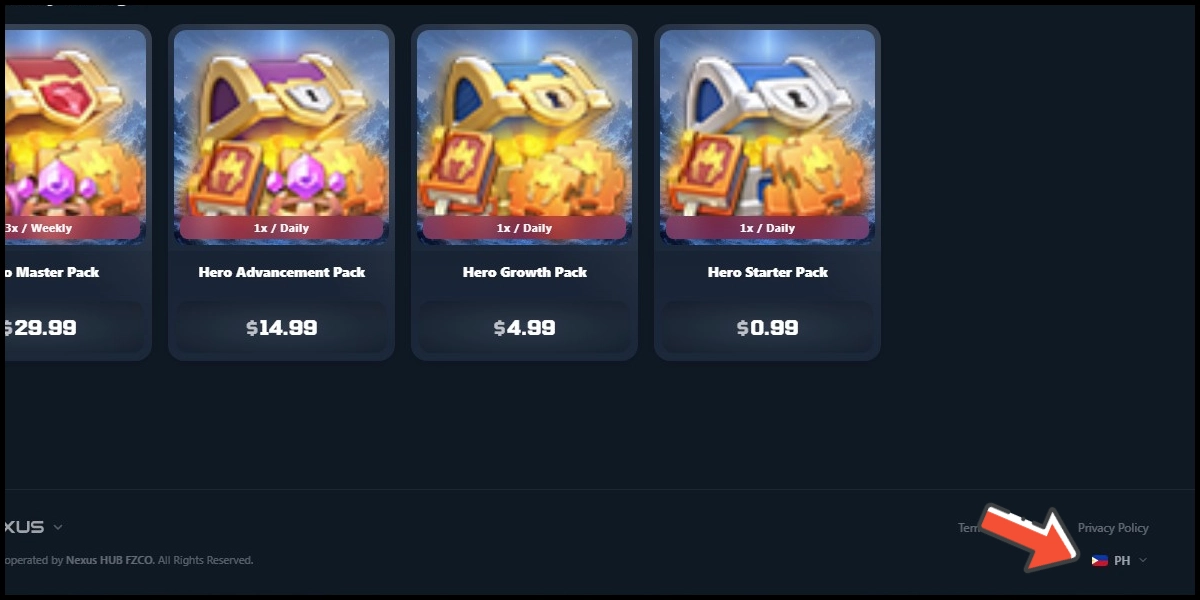
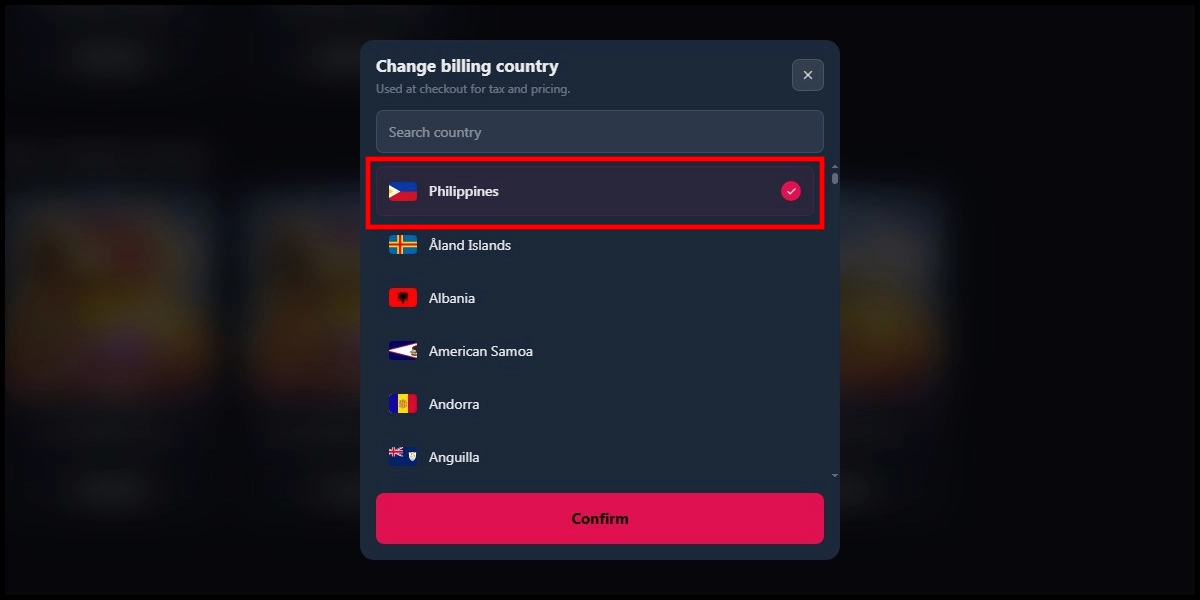
Scroll down to the bottom of the top-up page, and choose Philippines as the payment region.
Step 3
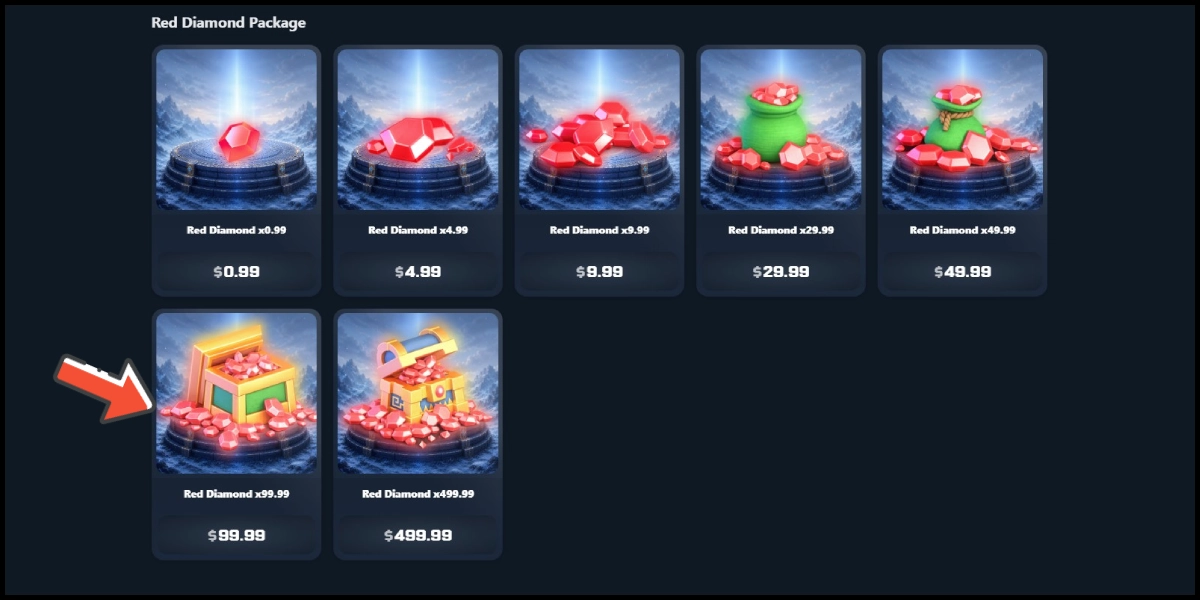
Select the item you want to top up.
Step 4
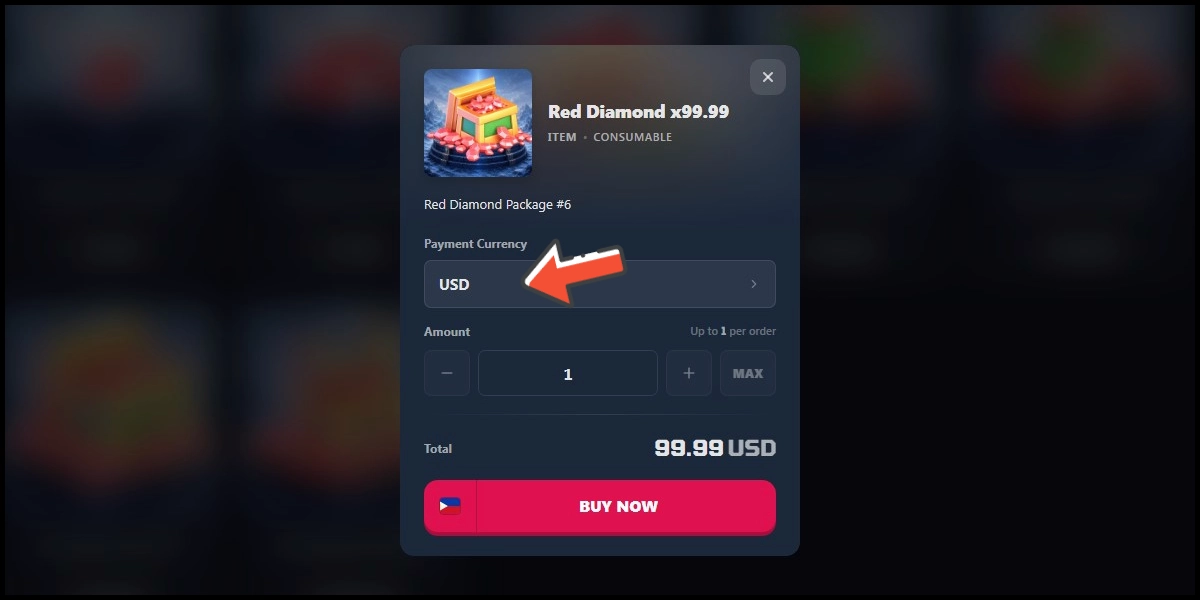
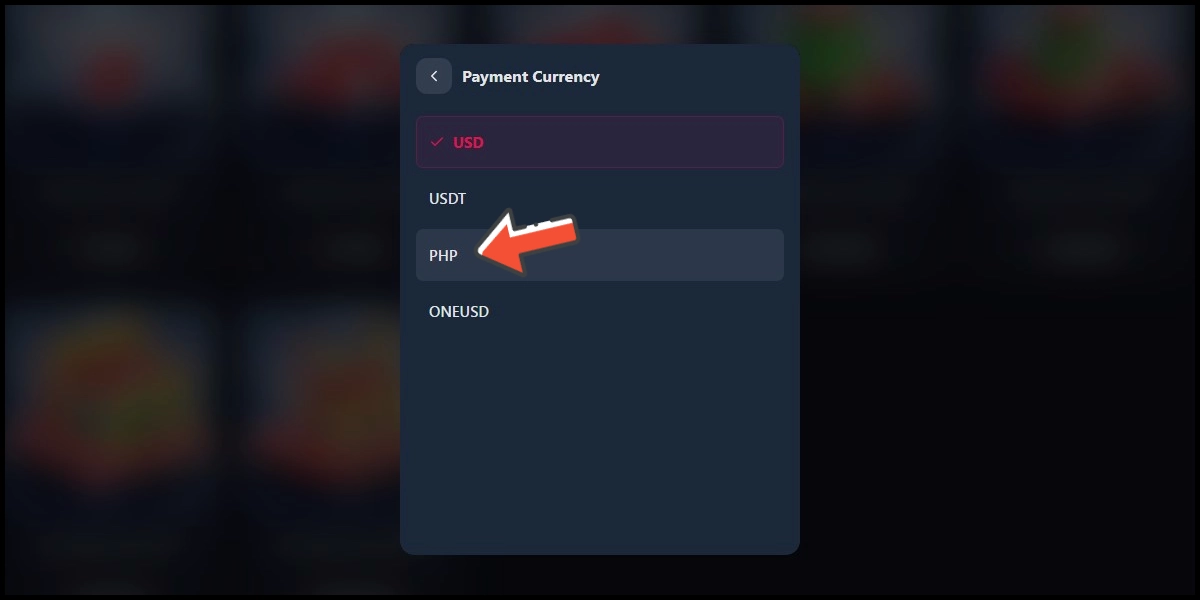
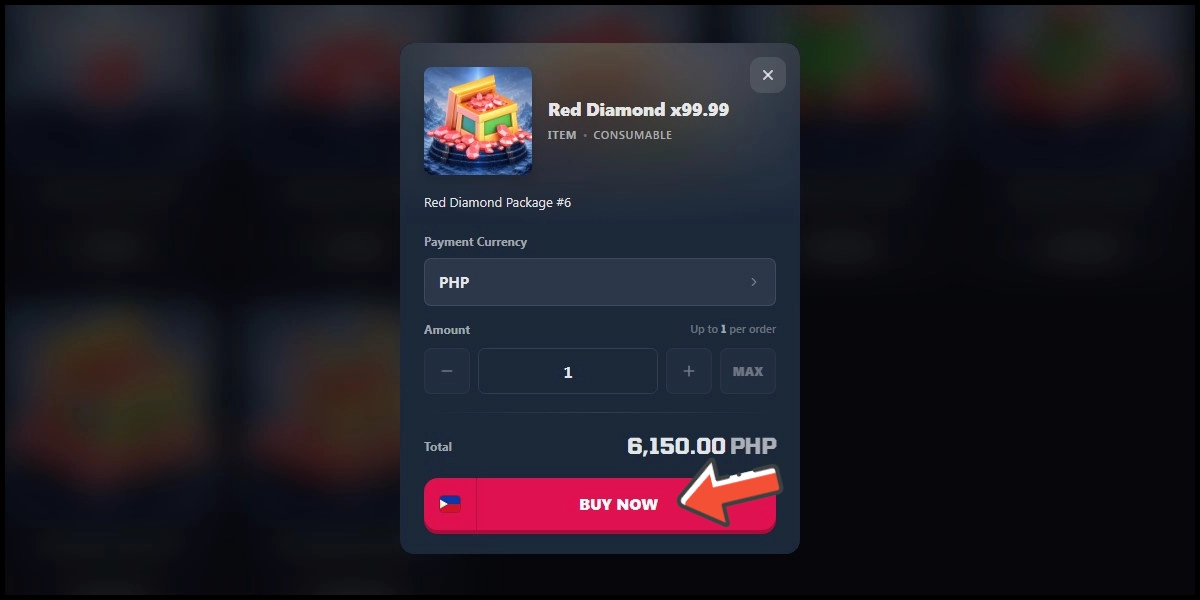
Select PHP as the payment currency, and click the Buy Now button.
Step 5
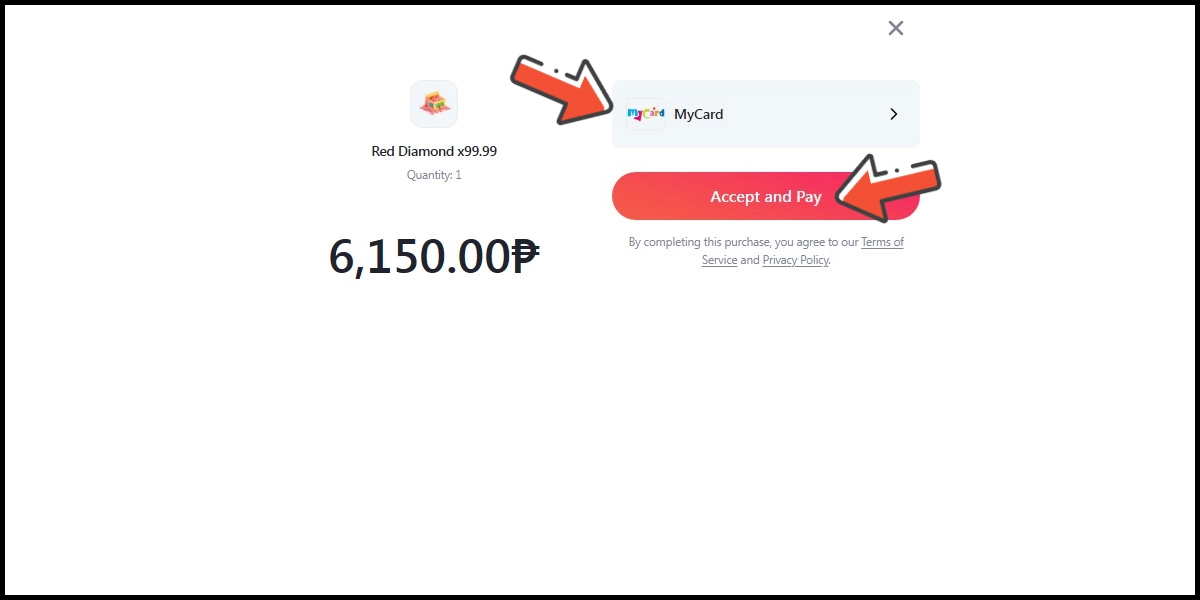
Select MyCard as the payment method, then click the Accept and Pay button.
Step 6
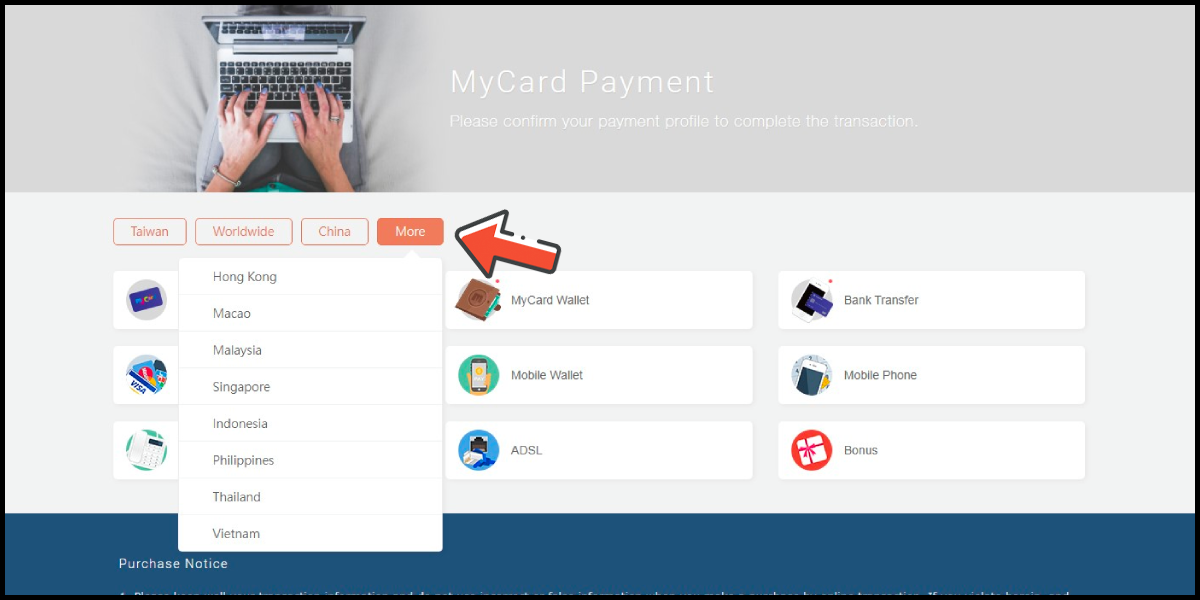
You will enter the MyCard Payment page, the available payment methods vary depending on your location, click "More" as shown by the arrow in the image to switch to the payment method for each country/region.
Step 7
Select the payment method you want to use. (this guide use E-Wallet as an example)

Step 8
Select the payment channel. (this guide use Gcash as an example)
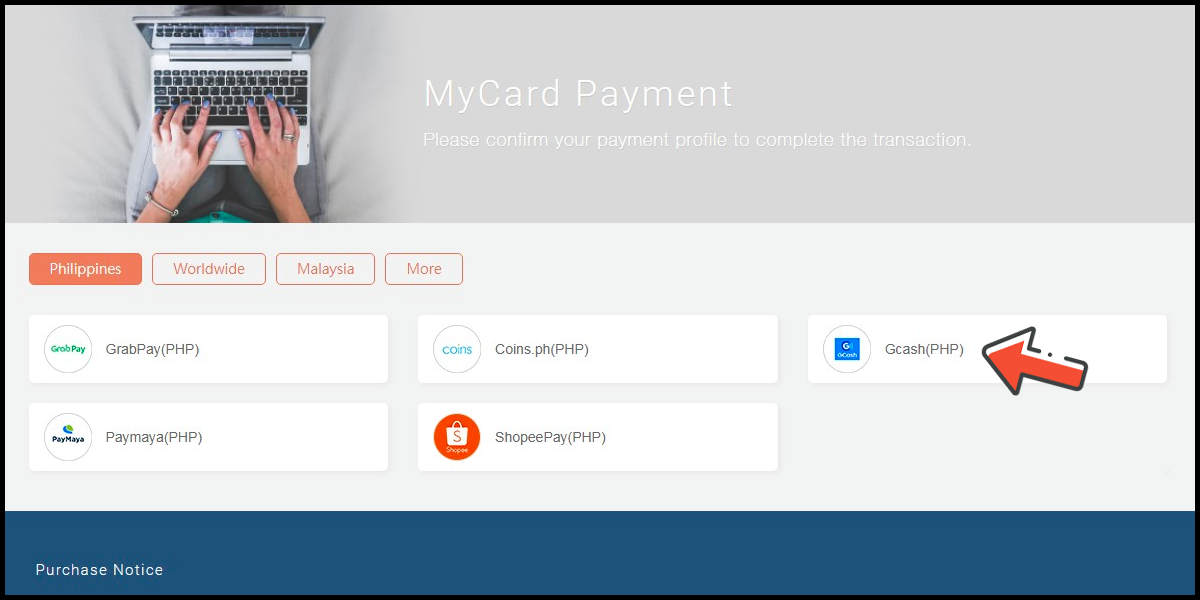
Step 9
Fill in the required transaction information, then click the "Agree and Submit" button.
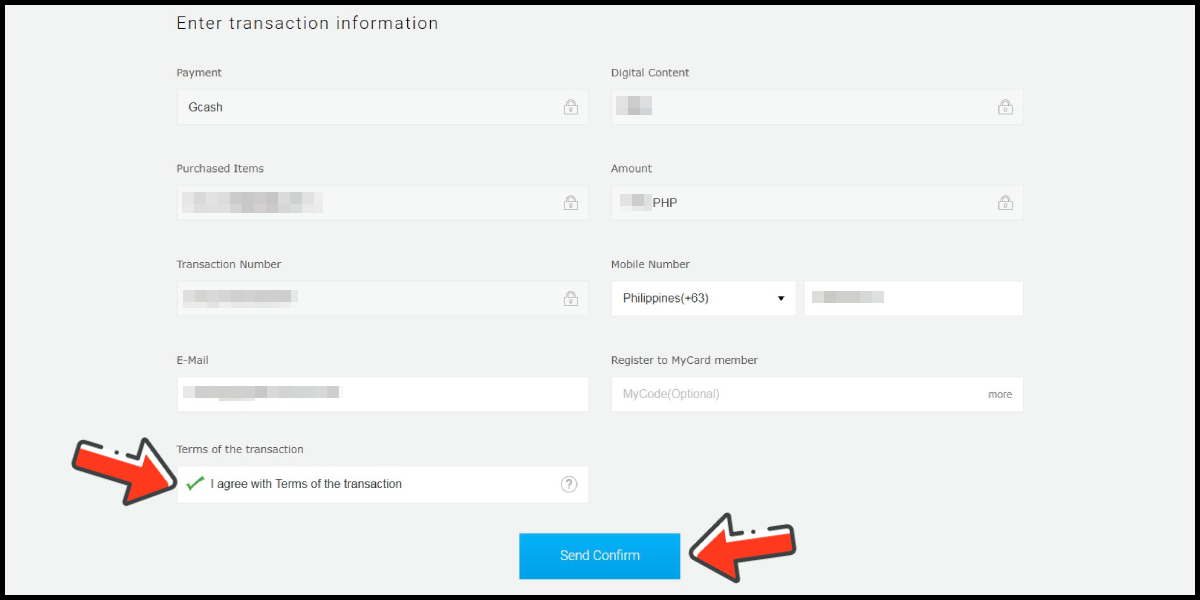
Step 10
Log in to your Gcash account and carry out the Gcash payment procedure to complete the transaction.
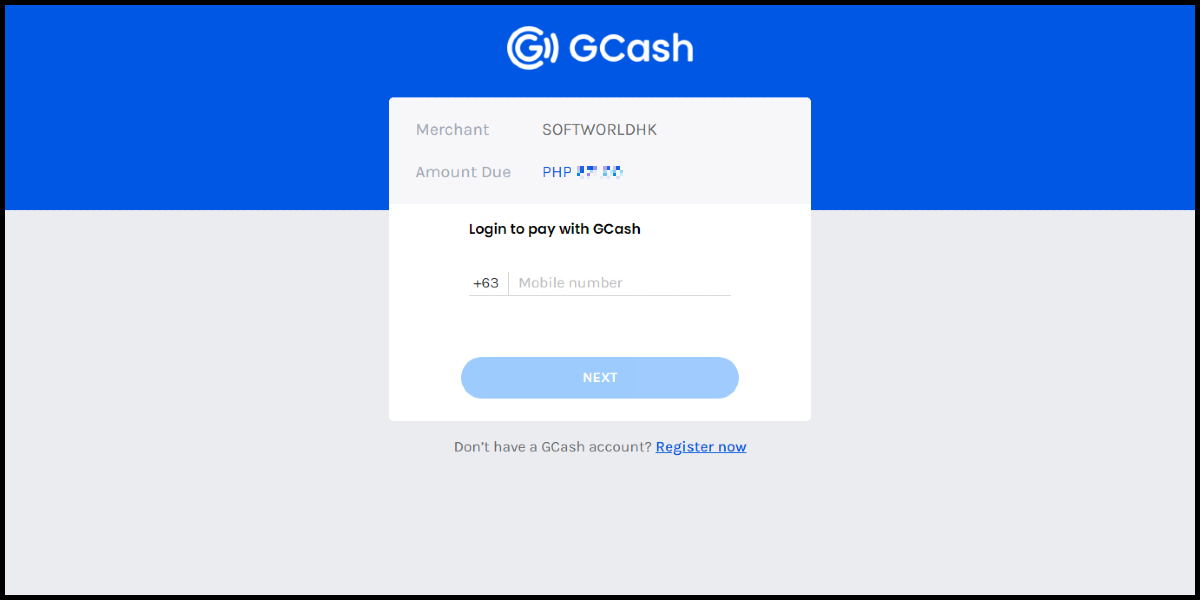
MyCard Wallet
Step 1
Click here to go to the top-up page, click the Login button, enter your game UID, then click the Confirm button.
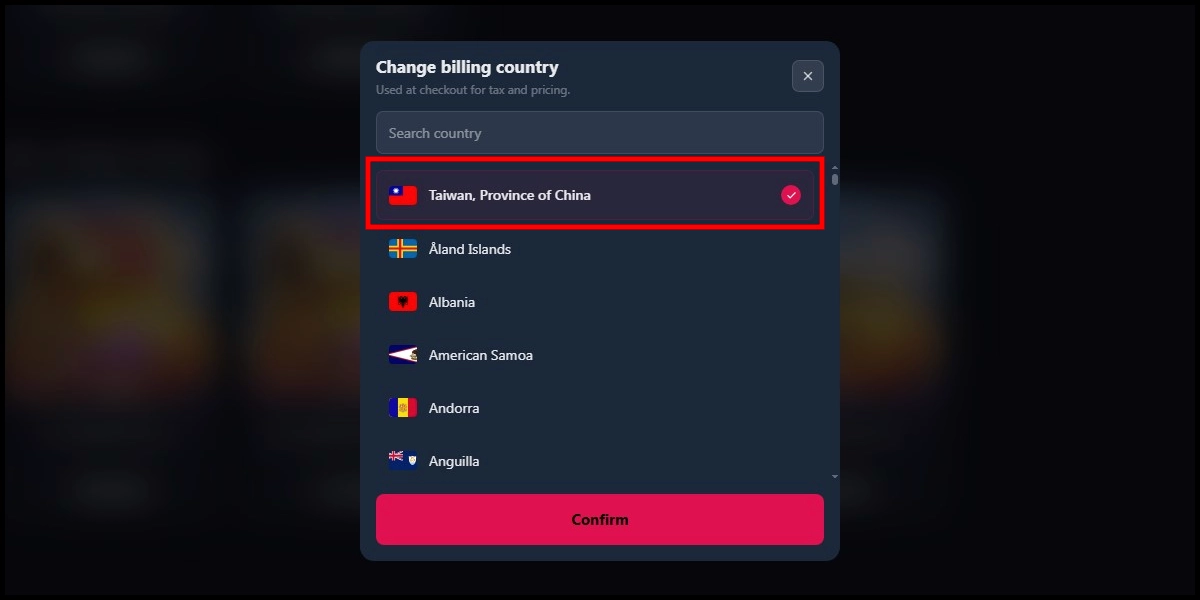
Step 2
Scroll down to the bottom of the top-up page, and choose Taiwan as the payment region.
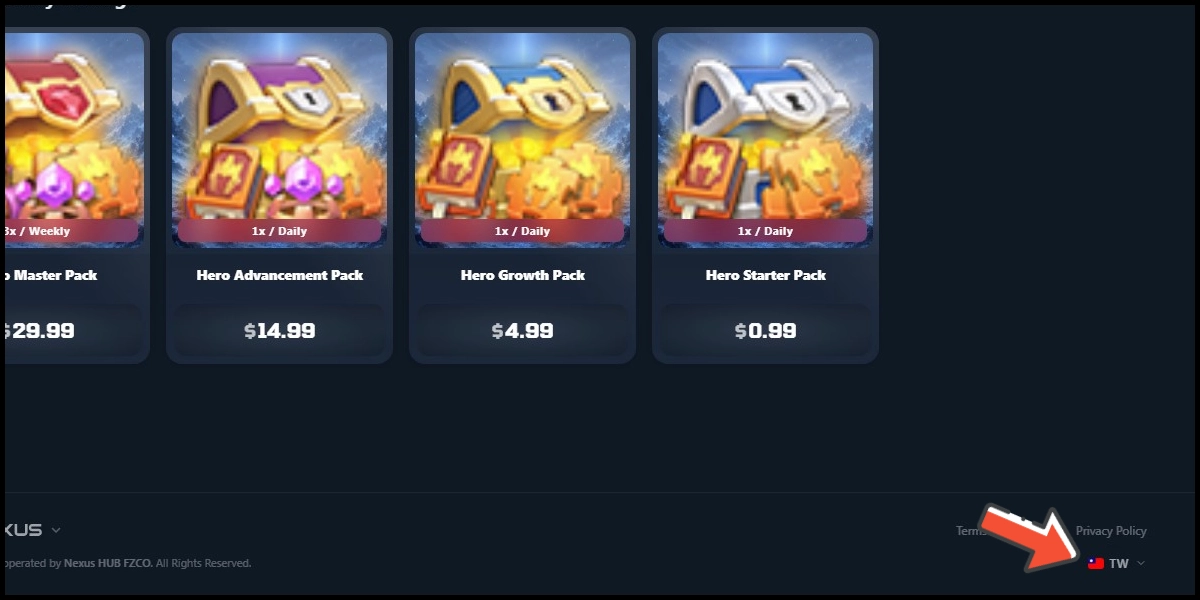
Step 3
Select the item you want to top up.
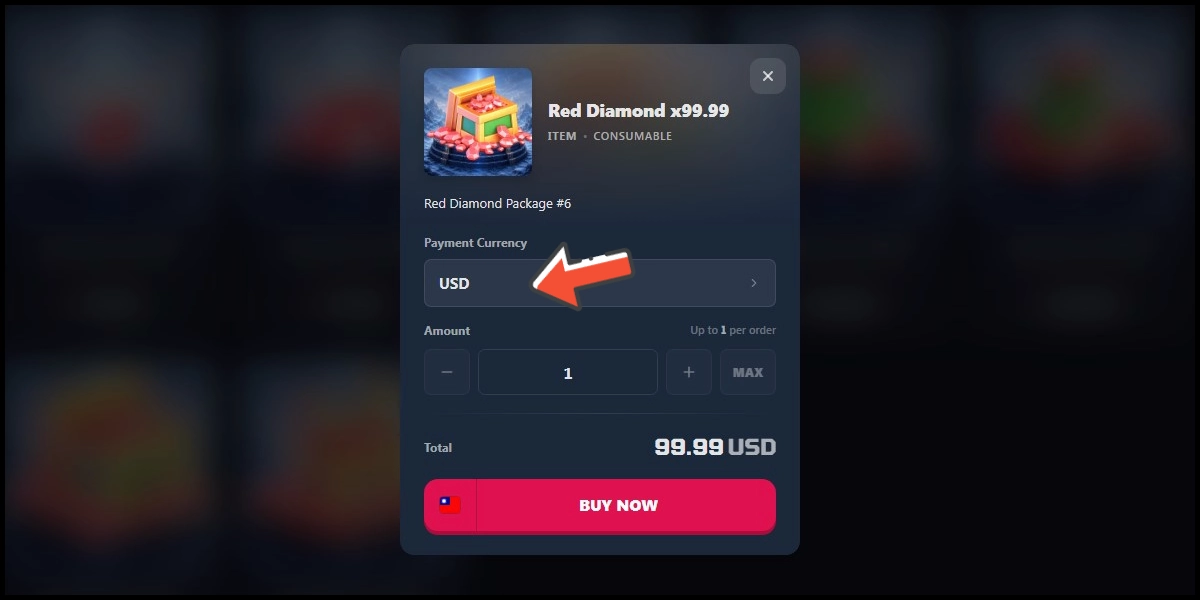
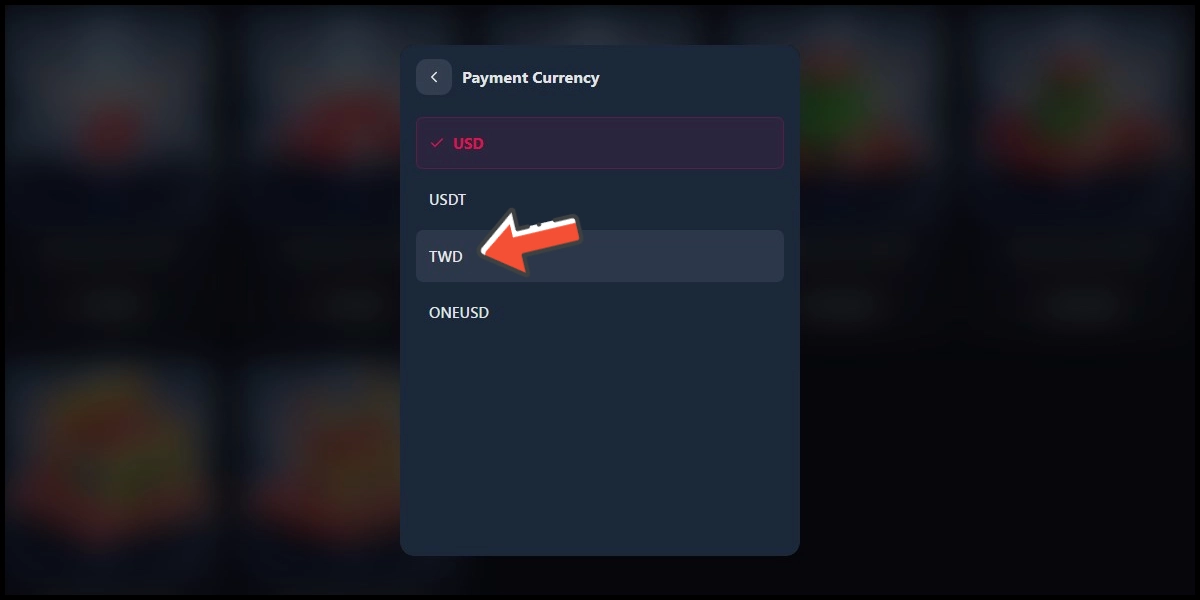
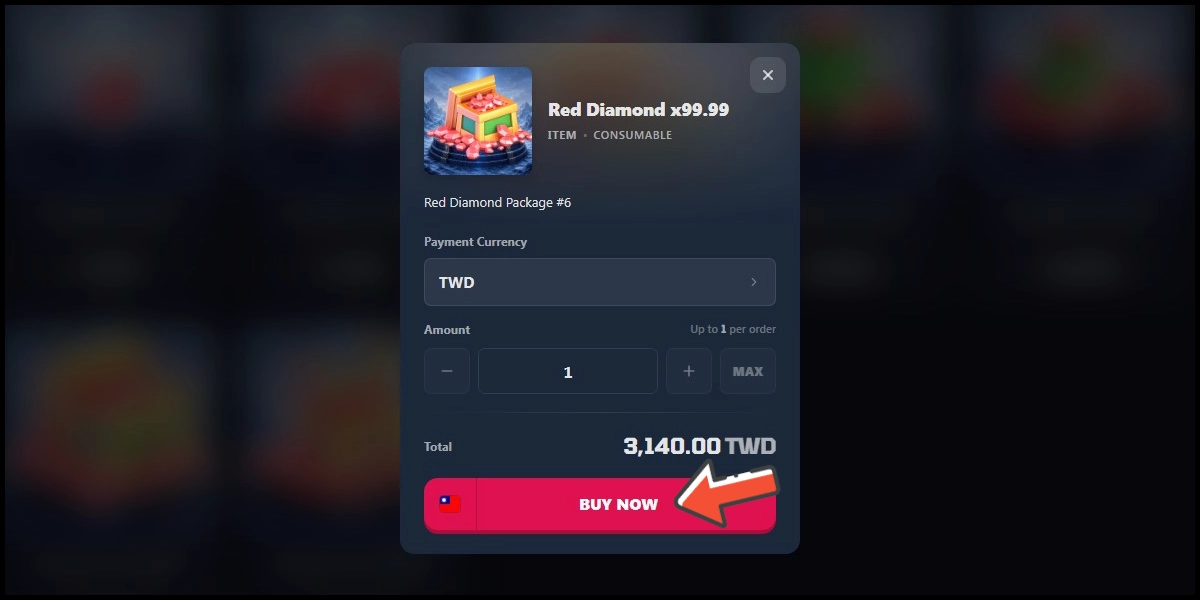
Step 4
Select TWD as the payment currency, and click the Buy Now button.
Step 5
Select MyCard as the payment method, then click the Accept and Pay button.
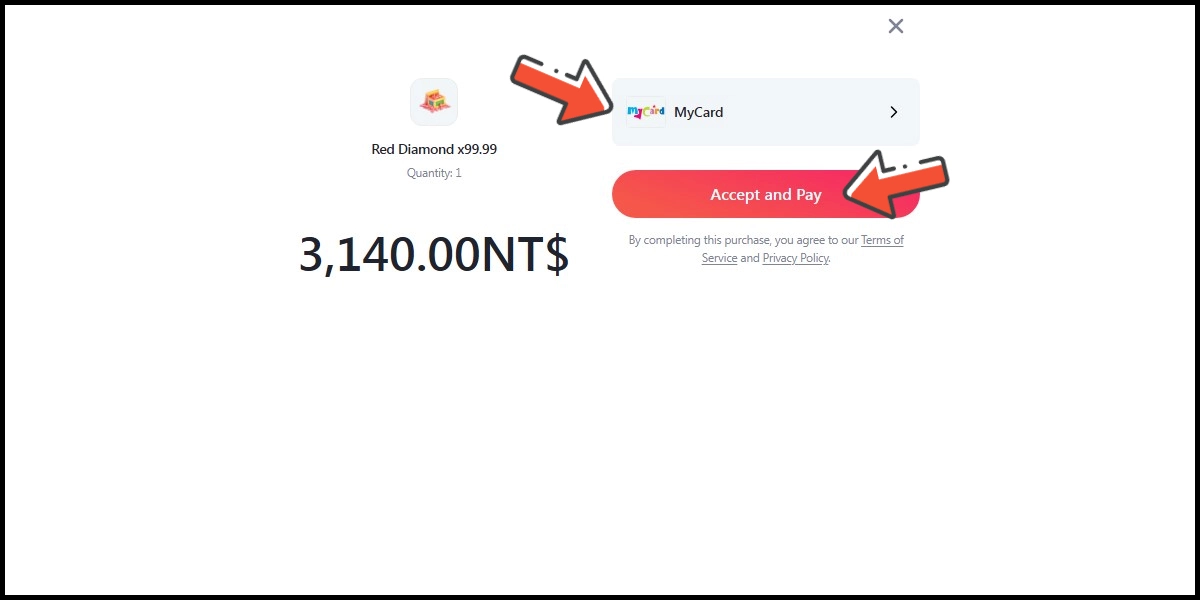
Step 6
You will enter the MyCard Payment page, the available payment methods vary depending on your location, click "More" as shown by the arrow in the image to switch to the payment method for each country/region. (Please choose Taiwan as the payment region)
Step 7
Select "MyCard Wallet" as the payment method.
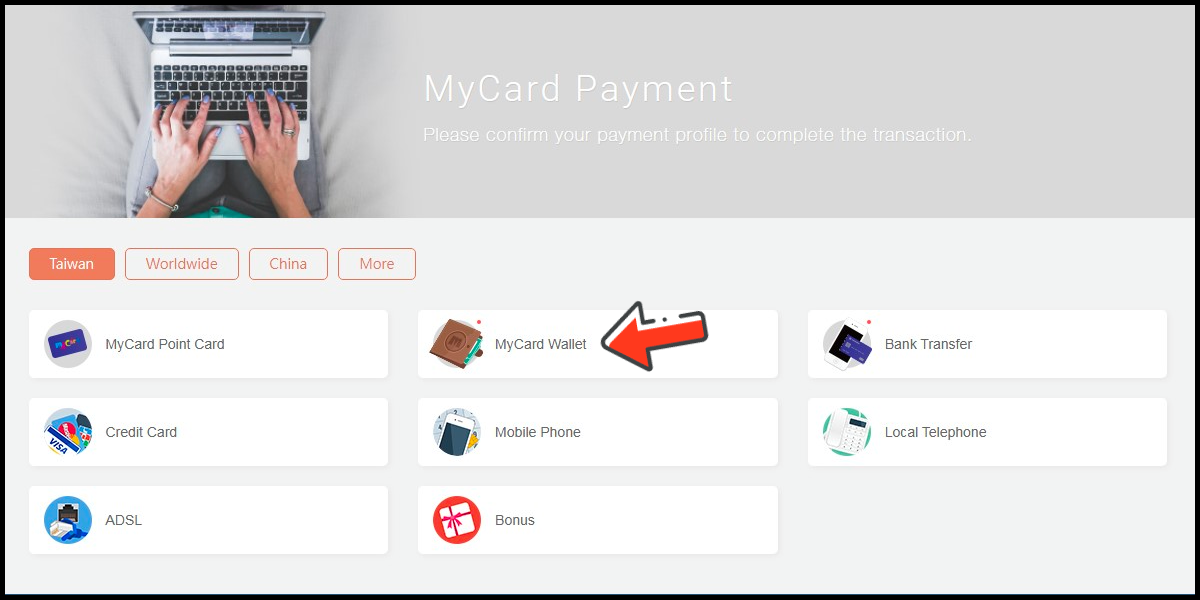
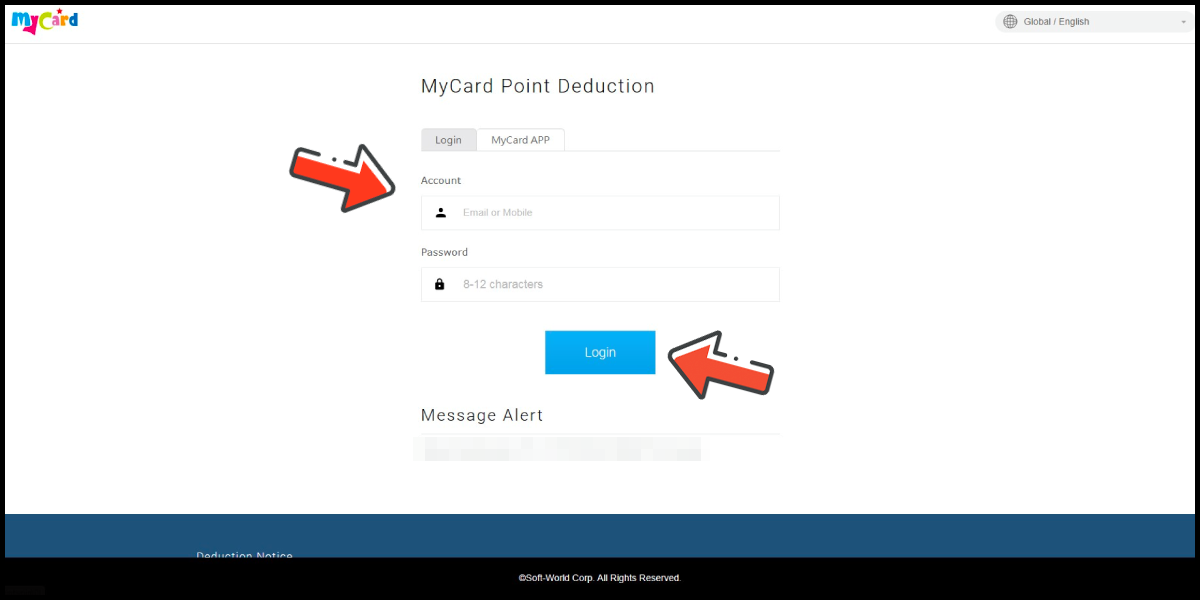
Step 8
Log in to your MyCard member account. (You can also pay by MyCard App)
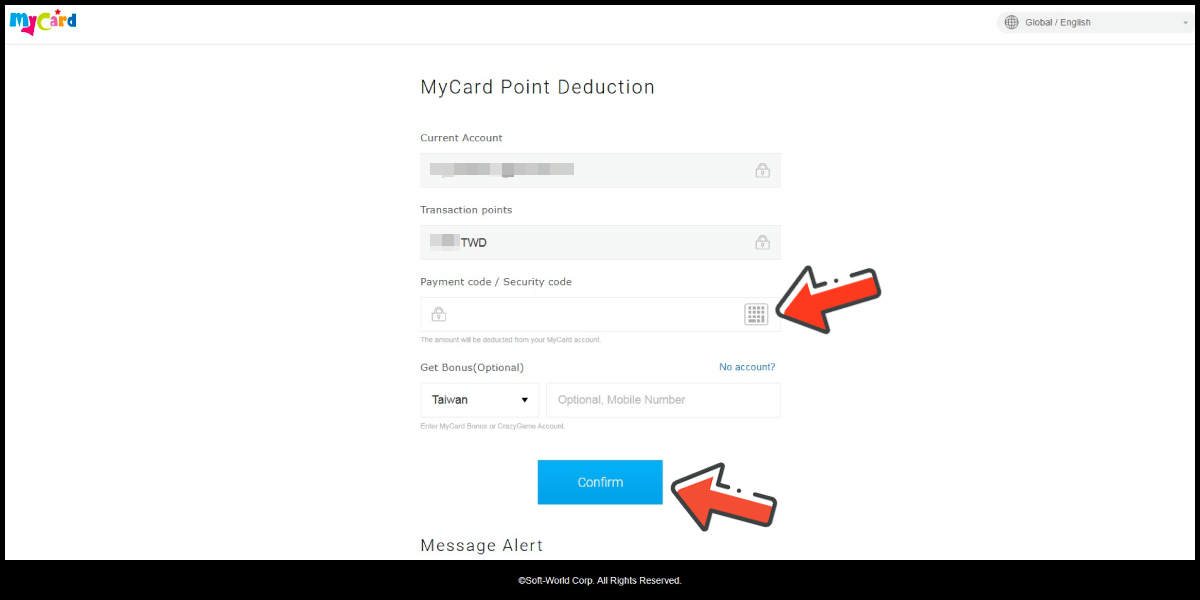
Step 9
Enter the payment password, mobile number (optional), and then click "Confirm" to complete the top up process.
Pay by MyCard App
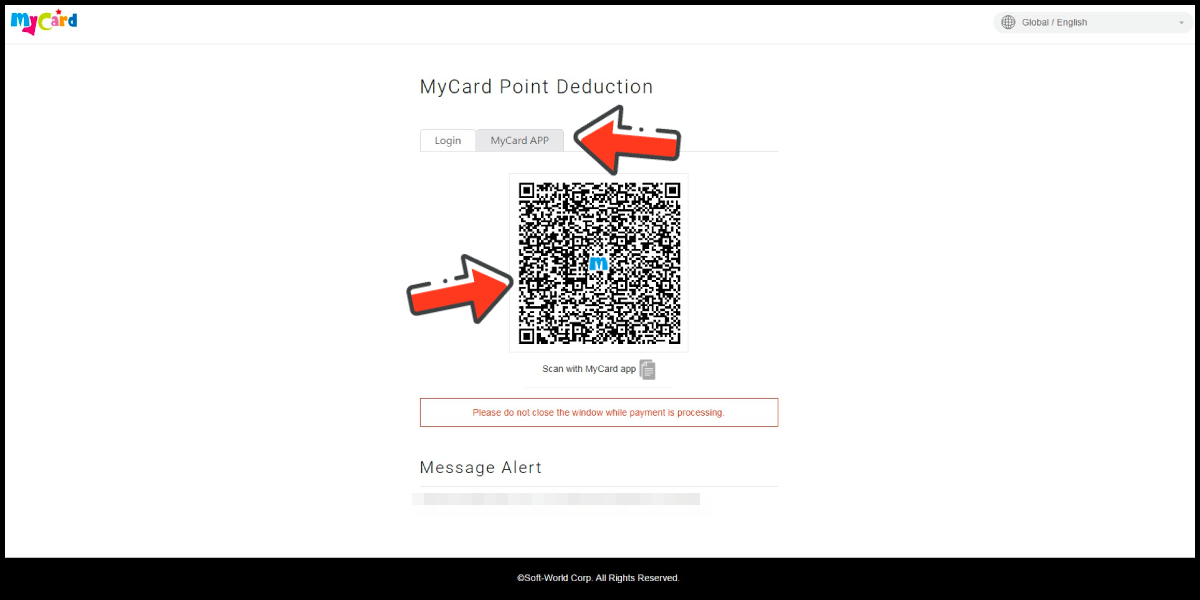
Click the "MyCard APP" tab which is pointed by the arrow in the picture, open the MyCard app in your mobile device and scan the QR Code on the top up page to complete the top up process. (Not the QR Code in this guide page)